Copilot Cowork can be extended with plugins, and a plugin is just a .zip file containing a manifest, icons, skills and optional connectors (remote MCP servers). I wanted to see how quickly I could wrap Higgsfield (AI image, video and audio generation) as a Cowork plugin and publish it to my tenant.
In this post I’ll show you the package, the two skills I wrote, the admin centre upload click by click, and then a real run: one photo of me turned into a stage image and then a short video, all from Cowork.
Reference: Build plugins for Copilot Cowork
What Goes Inside a Cowork Plugin
The package is small. Everything sits at the root of the zip:
higgsfield-cowork.zip
├── manifest.json            # Teams/M365 app manifest (v1.29)
├── color.png                # 192x192 full-colour icon
├── outline.png              # 32x32 outline icon
└── skills/
    ├── higgsfield-generate/SKILL.md
    └── higgsfield-workflows/SKILL.md
Skills use the open Agent Skills format, so the same SKILL.md files work in other tools too. The connector is simply a URL in the manifest.
The Manifest and the Higgsfield Connector
The key parts are agentSkills (folders of skills) and agentConnectors (the MCP server):
{
  "$schema": "https://developer.microsoft.com/json-schemas/teams/v1.29/MicrosoftTeams.schema.json",
  "manifestVersion": "1.29",
  "version": "1.0.0",
  "id": "7a451306-103d-4179-8458-4ecb46d6f2d6",
  "name": { "short": "Higgsfield", "full": "Higgsfield for Copilot Cowork" },
  "icons": { "color": "color.png", "outline": "outline.png" },
  "agentSkills": [
    { "folder": "./skills/higgsfield-generate" },
    { "folder": "./skills/higgsfield-workflows" }
  ],
  "agentConnectors": [
    {
      "id": "higgsfield-mcp",
      "displayName": "Higgsfield",
      "description": "Higgsfield generative media tools: image, video, audio, upscaling, projects and presets",
      "toolSource": {
        "remoteMcpServer": { "mcpServerUrl": "https://mcp.higgsfield.ai/mcp" }
      }
    }
  ]
}
I’ve trimmed the developer, description and accent colour fields for brevity.
Why no auth block? If the MCP server supports Dynamic Client Registration, you can leave out authorization and Cowork creates the OAuth client for you. Higgsfield’s remote MCP server is OAuth based, so this is the simplest route.
Why version 1.29? At 1.29 connector entries are URL-only. At 1.28 you also have to ship a tool-description JSON file.
Writing the Higgsfield Skills
A skill is a folder with a SKILL.md. The folder name must match the name in the frontmatter, in kebab-case. The description is what makes Cowork pick the skill, so include trigger phrases.
The Generate Skill
---
name: higgsfield-generate
description: |
  Generates images, videos and audio with Higgsfield.
  Use when user asks to "generate an image", "make a video", "create AI art",
  "animate this picture", "upscale this image", "remove the background", or "use Higgsfield".
license: MIT
metadata:
  author: DamoBird365
  version: "1.0"
---

# Higgsfield Generate

## What This Skill Does

Turns a creative request into Higgsfield generations using the Higgsfield connector tools.

## Workflow

1. Clarify subject, style, aspect ratio and (for video) duration only if missing.
2. Call `models_explore` to choose a suitable model, and `balance` to check credits when cost matters.
3. For user-supplied images, import them with `media_upload` or `media_import_url` first.
4. Generate with `generate_image` or `generate_video` (`generate_audio` for audio). Use the `_batch` variants for multiple variations.
5. Poll with `job_status` or `jobs_wait` until complete, then show results with `show_generations`.
6. Offer follow-ups: `upscale_image`, `upscale_video`, `remove_background`, `reframe`, `outpaint_image`.

## Output Format

Return a short summary: model used, prompt used, credits spent, and links to the results.

## Guidelines

- Confirm before running expensive batches or long videos.
- Never invent job IDs; always use IDs returned by tools.
The Workflows Skill
---
name: higgsfield-workflows
description: |
  Runs Higgsfield presets, projects and studio workflows.
  Use when user asks to "use a Higgsfield preset", "create an AI influencer", "make an ad",
  "organize my Higgsfield projects", "check my Higgsfield credits", or "list my generations".
license: MIT
metadata:
  author: DamoBird365
  version: "1.0"
---

# Higgsfield Workflows

## What This Skill Does

Guides use of Higgsfield's higher-level features: presets, projects, folders, AI influencers, ads and account info.

## Workflow

1. For preset or recipe requests, call `get_presets` then `get_preset_instructions` before `execute_preset`.
2. For organization, use `list_workspaces`, `list_projects`, `create_project`, `list_folders` and `create_folder`.
3. For AI influencers use `ai_influencer_get_options` then `ai_influencer_generate`.
4. For ads use `ads_studio_list_brands`, `ads_studio_create_brand`, `ads_studio_quote`, then `ads_studio_generate`.
5. For account questions use `balance`, `get_account_overview` or `show_plans_and_credits`.

## Output Format

Summarize what was run, where results are stored (project or folder) and remaining credits when known.

## Guidelines

- Quote costs (`ads_studio_quote`, `prepare_generation`) and get user confirmation before spending credits.
Zipping the Package
Everything must be at the root of the zip, not inside a parent folder:
Compress-Archive -Path manifest.json, color.png, outline.png, skills -DestinationPath higgsfield-cowork.zip
Uploading the Plugin in the Microsoft 365 Admin Centre
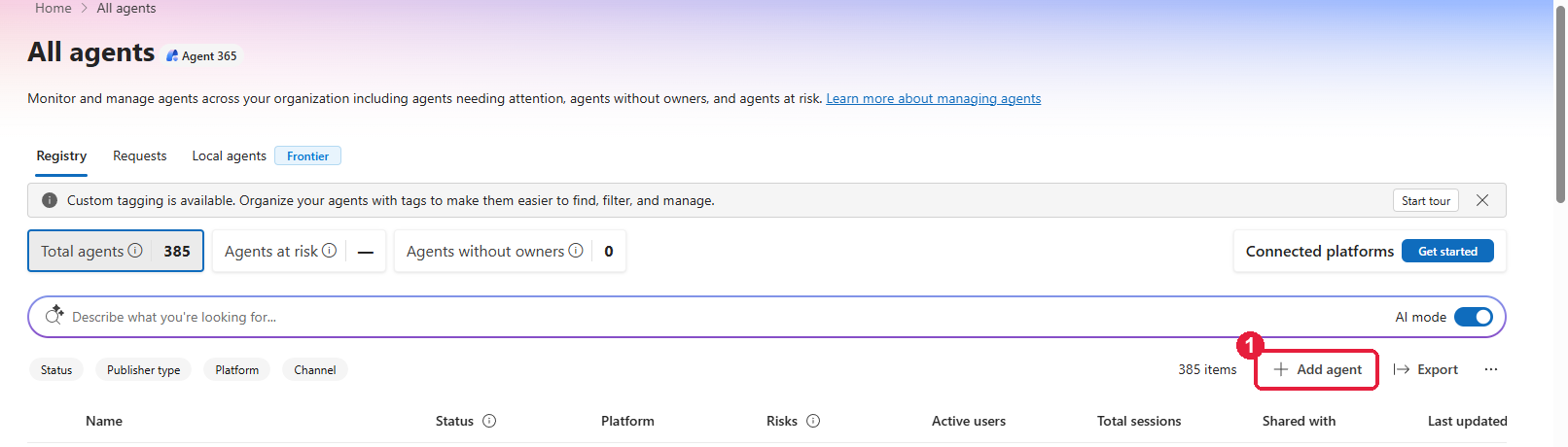
Sign in to admin.cloud.microsoft as a tenant admin and go to Agents > All agents.
Click Add Agent
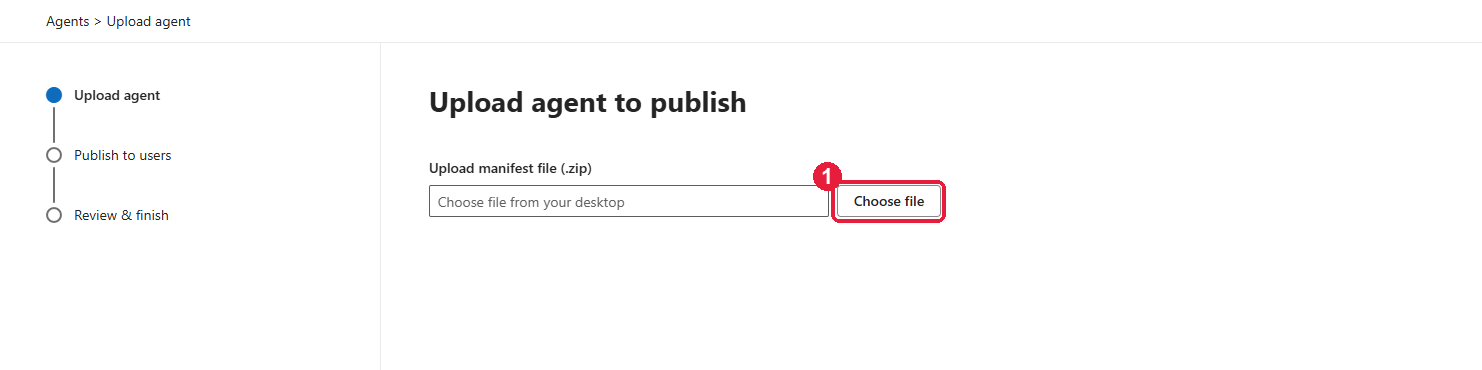
Choose Your Zip File
Click Choose file and select the zip.
Wait for Validation
The service checks the manifest against the app schema and validates your skills.
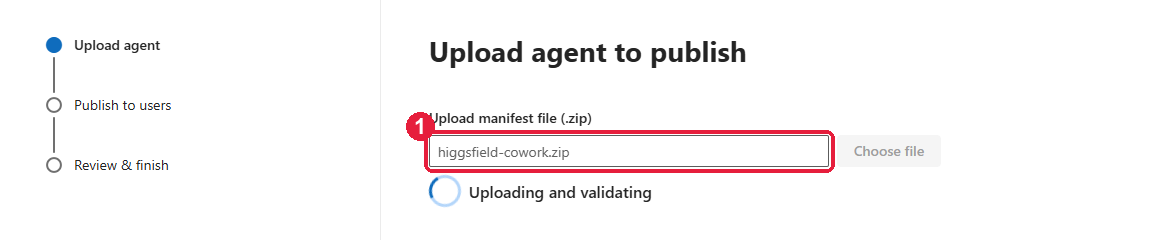
If the app ID already exists you’ll see “Must upload a newer version of the title than what is already present.” Bump version in manifest.json (for example 1.0.1), re-zip and upload again.

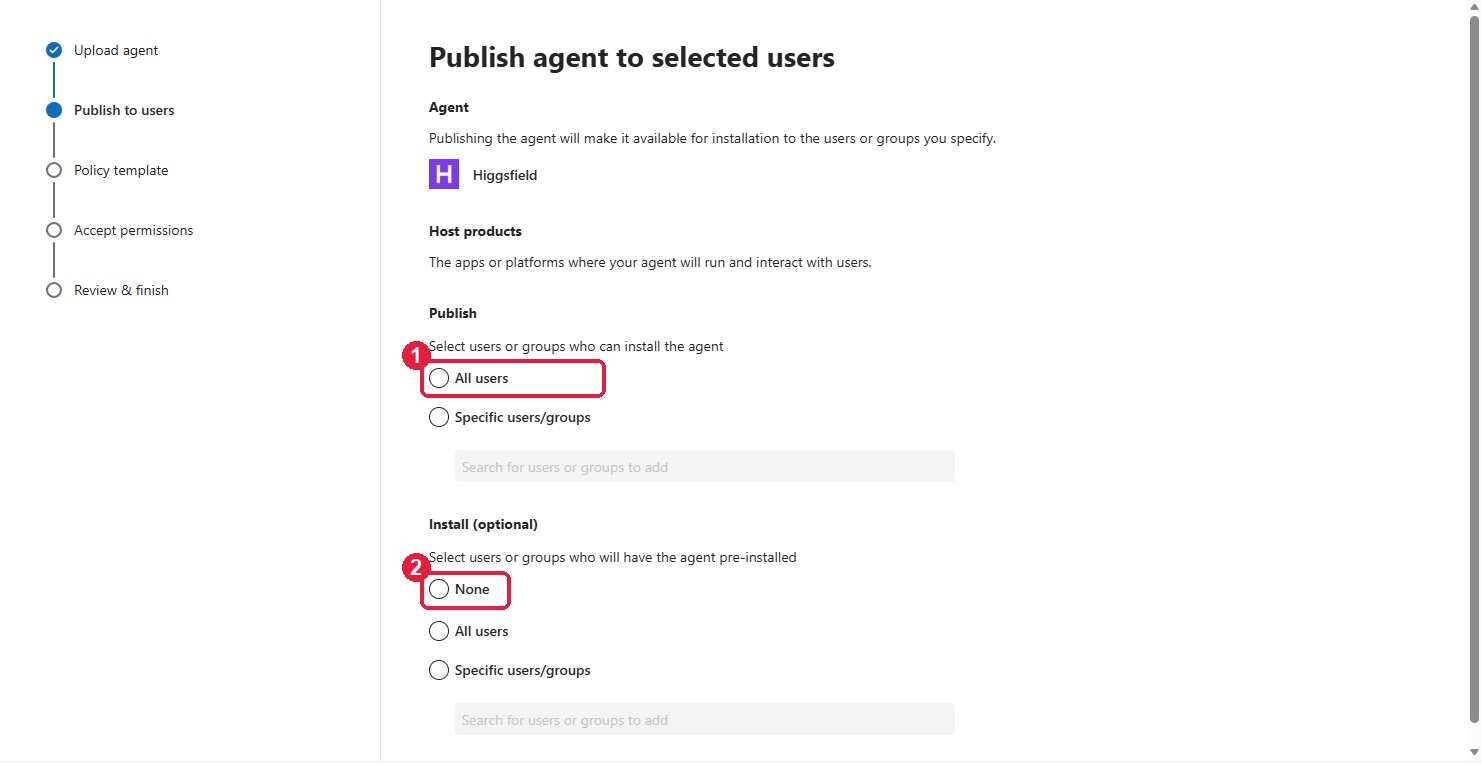
Choose Who Can Use It
Select All users (or specific users and groups) for Publish. Under Install (optional) I chose None, so people find it themselves rather than having it pre-installed. Click Next.
Policy Template and Permissions
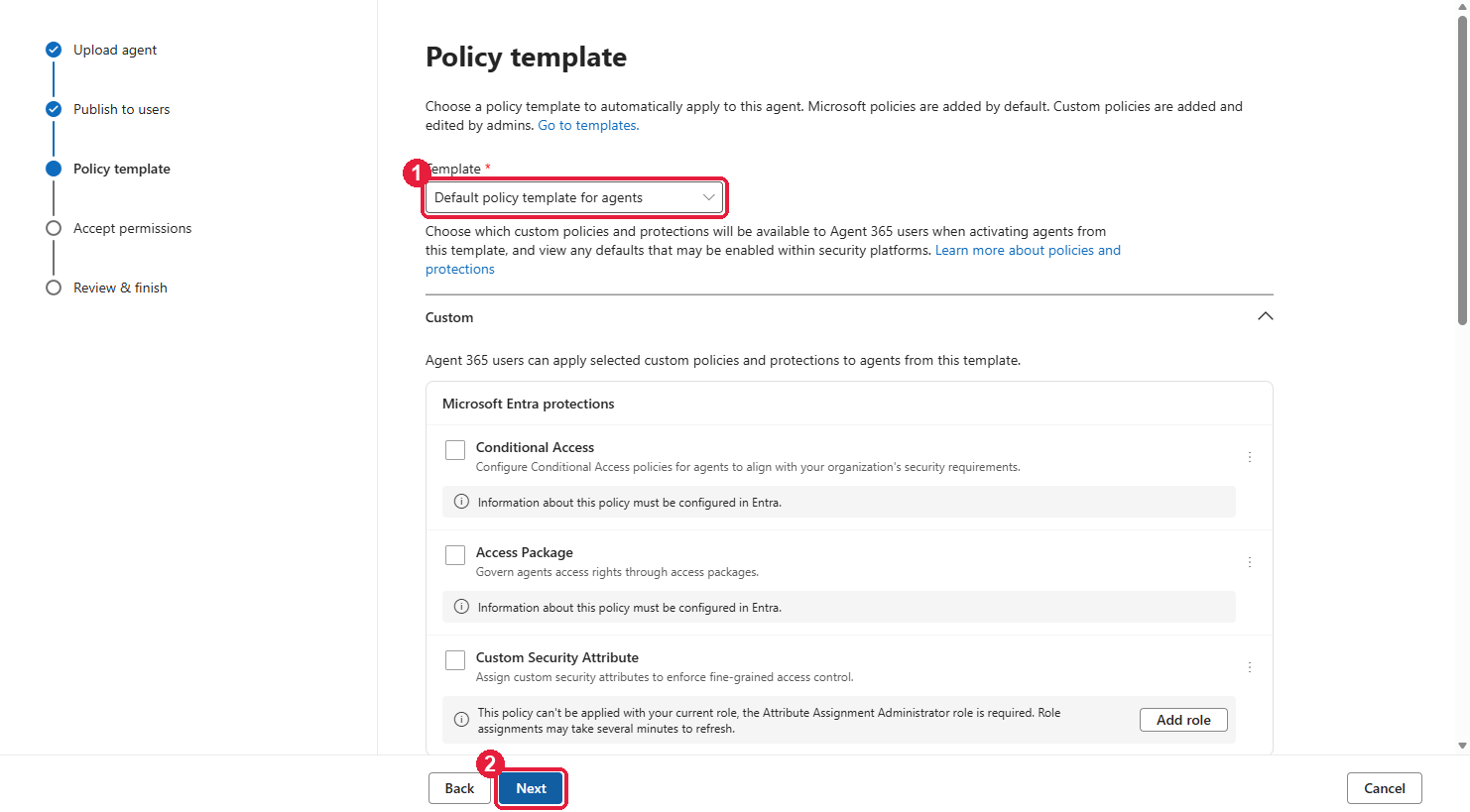
The Default policy template for agents is fine for most tenants. Click Next.
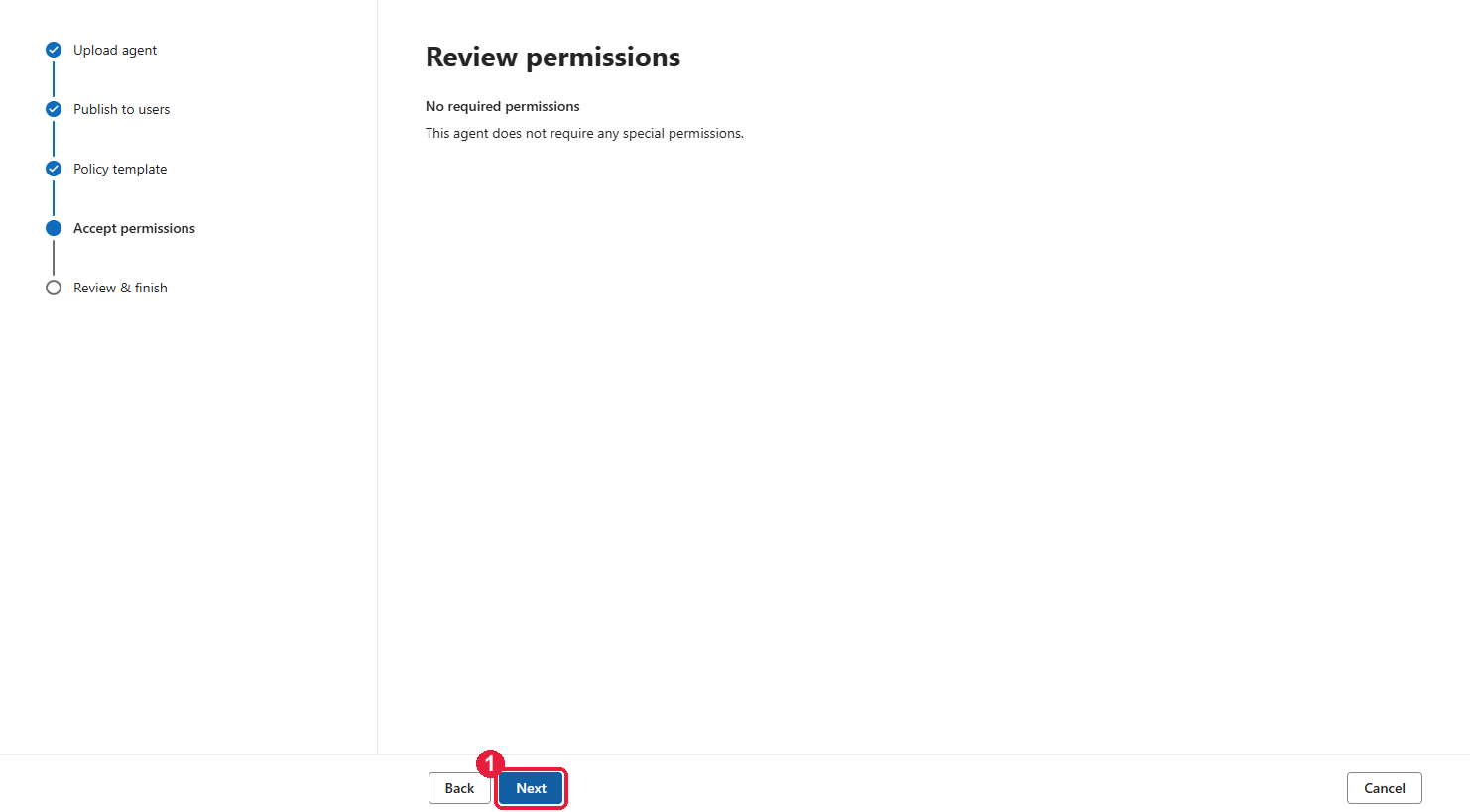
This plugin needs no special permissions, so click Next again.
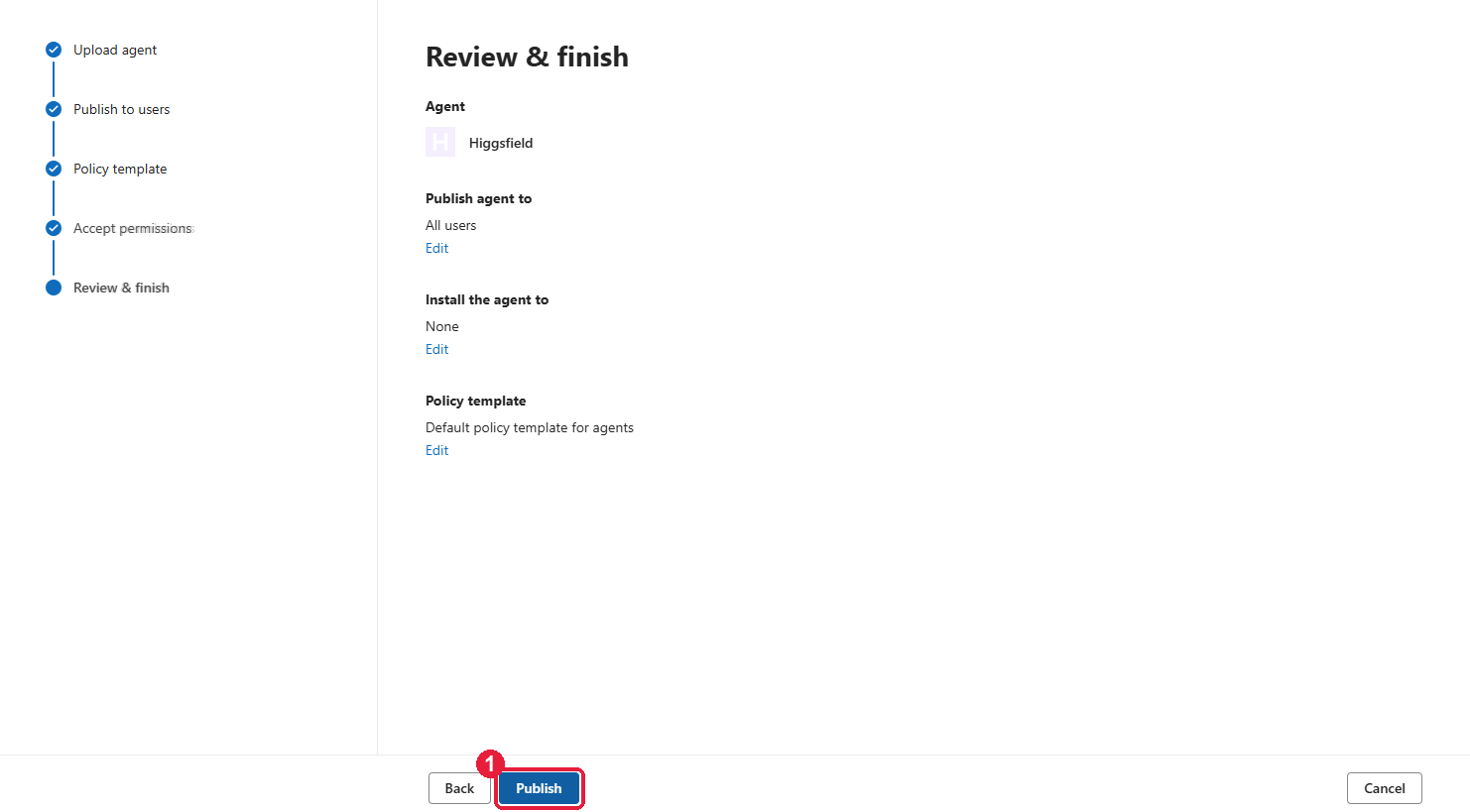
Review and Publish
Check the summary and click Publish.
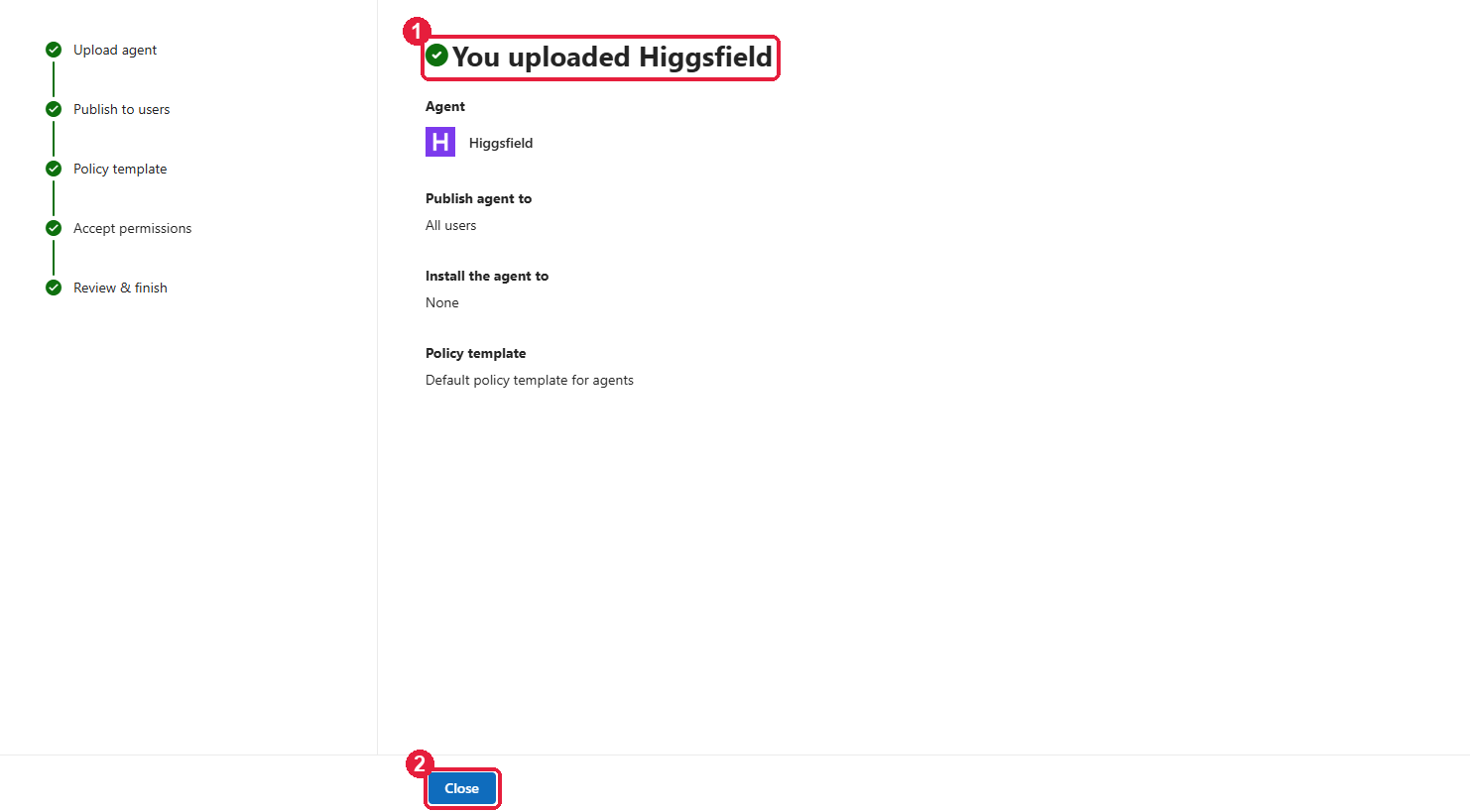
After a short “Publishing agent…” spinner you’ll see You uploaded Higgsfield. Click Close.
Finding the Plugin in Cowork
Open Cowork and go to Customize > Plugins. Admin-uploaded plugins appear in the Discover section. Add Higgsfield, sign in to Higgsfield when prompted, then try prompts like:
- “Generate a cinematic 5 second video of a neon-lit Tokyo street at night using Higgsfield”
- “Check my Higgsfield credits”
- “Remove the background from this image”
You don’t need an admin for this part of the story. As a user you can also upload a single skill (Customize > Skills > Add > Upload skill) or a whole plugin zip (Customize > Plugins > Upload plugin). A skill on its own doesn’t include the connector though, so you’d need the plugin upload for that.
From a Photo to a Stage Image to a Video
Here is a real run in Cowork, starting from a single reference photo.
The First Prompt
I attached a headshot (face_front.jpg) and invoked the skill with a slash command:
/higgsfield-generate generate a quick image of me on stage using the image of my face as reference
Cowork loaded the Higgsfield (generate) skill. The first call said Higgsfield wasn’t available in the session, then it reconnected and carried on.
Uploading the Reference Image
Cowork can’t hand a local file straight to a remote MCP server. The media_upload call reported “completion status unknown”, so Cowork opened Higgsfield’s upload widget and asked me to upload the photo there.
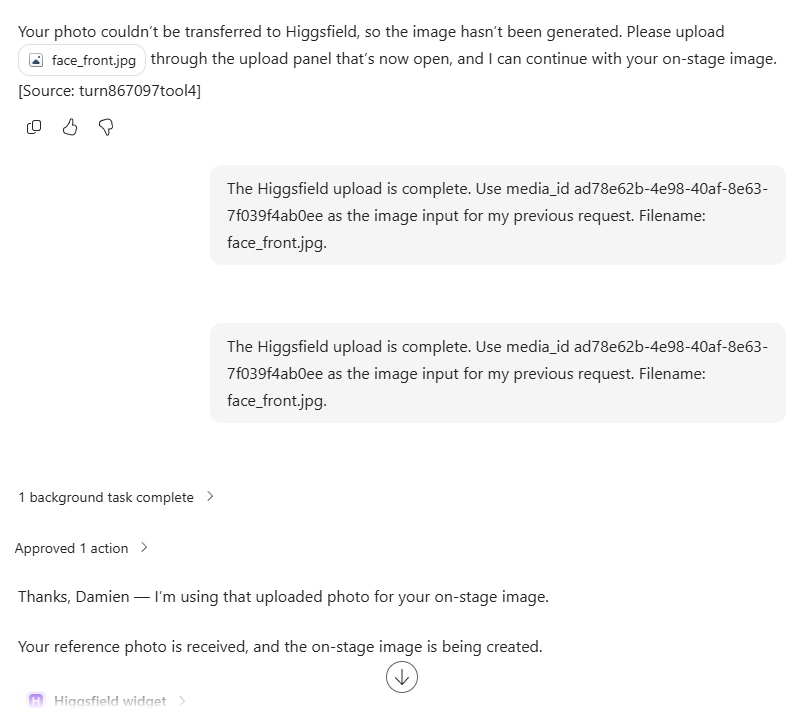
Once the upload finished, the widget posted the media_id back into the chat and Cowork continued with generate_image.
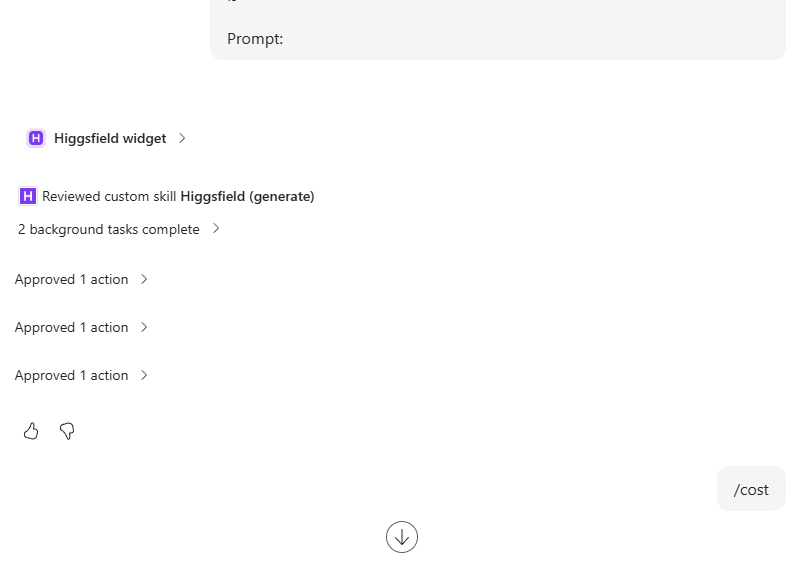
Cowork also asks you to approve each Higgsfield tool call (“Approved 1 action”). That is normal for MCP tools that don’t declare read-only annotations.
The Stage Image

The Follow-Up Prompt
I then asked for an animation. The Higgsfield widget sent this follow-up with the generated image as the reference:
Animate this reference image into a short video
Model: Auto   Reference image: <generated image URL>
Cowork reviewed the skill again, imported the image URL with media_import_url and called generate_video.
The Video
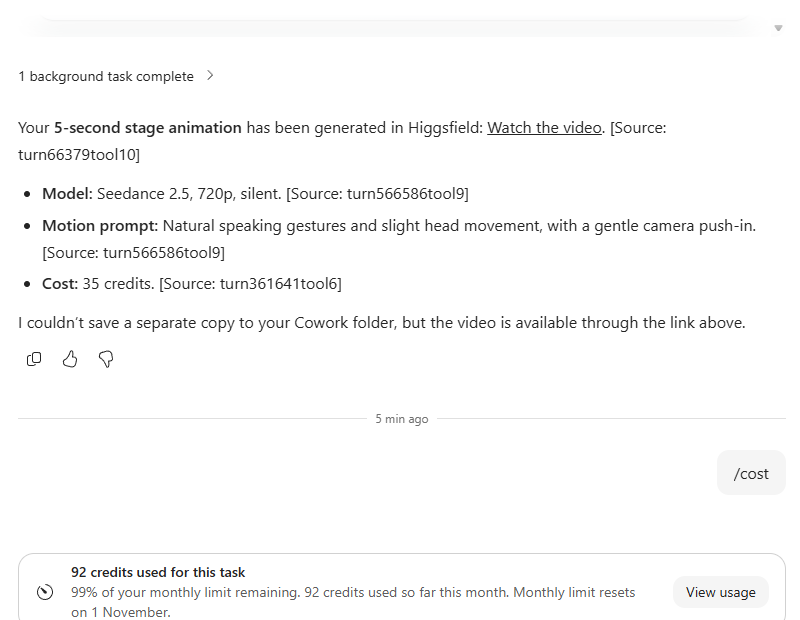
The result is a 5-second clip on Seedance 2.5 (720p, silent) with the motion prompt “natural speaking gestures and slight head movement, with a gentle camera push-in”. It cost 35 credits, and the image plus video came to 92 credits in total (the /cost command in Cowork shows usage).
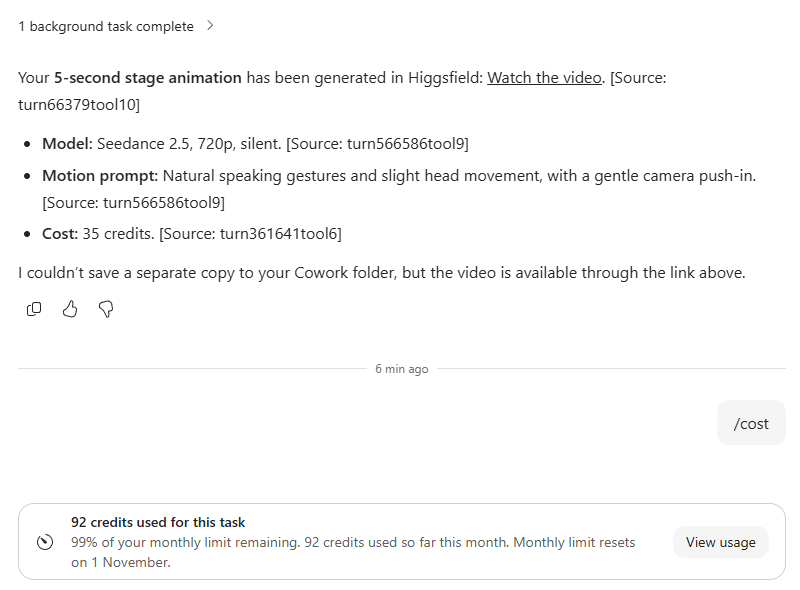
Cowork couldn’t save a copy of the video to my Cowork folder, so you open it from the link to Higgsfield.
Troubleshooting
| Symptom | Fix |
|---|---|
| Upload fails with a schema error | v1.28/1.29 schemas reject unknown fields, so remove anything not in the schema |
| Skill doesn’t load | The folder name must equal name in the SKILL.md frontmatter (kebab-case) |
| “Must upload a newer version” | Increase version in the manifest and re-zip |
| “Higgsfield isn’t available in this session” | Cowork connects per session, so let it reconnect and retry |
| Reference image “couldn’t be transferred” | Upload it in the Higgsfield upload widget, then continue with the returned media_id |
| Connector won’t authenticate | The server may not support Dynamic Client Registration. Register an OAuth client and add an authorization block with OAuthPluginVault |
Practical Takeaways
- A Cowork plugin is just a zip: manifest, icons, skills and a connector URL.
- Skills teach Cowork how to use the tools, and the connector provides the tools.
- Uploading in the admin centre publishes to Discover for the whole tenant. Users can still upload skills or plugins themselves for testing.
- Expect a few approval prompts and an upload widget the first time you use a reference image.
Final Thoughts
I was surprised how little it takes to bring an external MCP server into Cowork. The manifest is short, the skills are plain markdown, and the hardest part was the file hand-off for reference images, which is a Cowork and MCP limitation rather than anything in the plugin. If you want to try Higgsfield yourself, you can sign up through my Higgsfield link (affiliate link, so I may earn a commission at no extra cost to you).
Want more on Copilot, agents and automation? Subscribe to the DamoBird365 YouTube channel.