If you’ve ever tried to find the latest official icon for a Microsoft product — say, the new Fluent 2 Forms icon or the current Power Apps logo — you’ll know the pain. Icons are scattered across CDNs, GitHub repos, documentation pages, and download packs. Some are outdated. Some are JPGs. Some are the 2019 version sitting next to the 2025 version with no way to tell which is which.
I decided to fix that. And I did it in a single working session with GitHub Copilot CLI as my co-pilot.
The result? Microsoft Cloud Icons — a curated, open-source collection of 79 official SVG and PNG icons, all normalised, categorised, and ready to use.
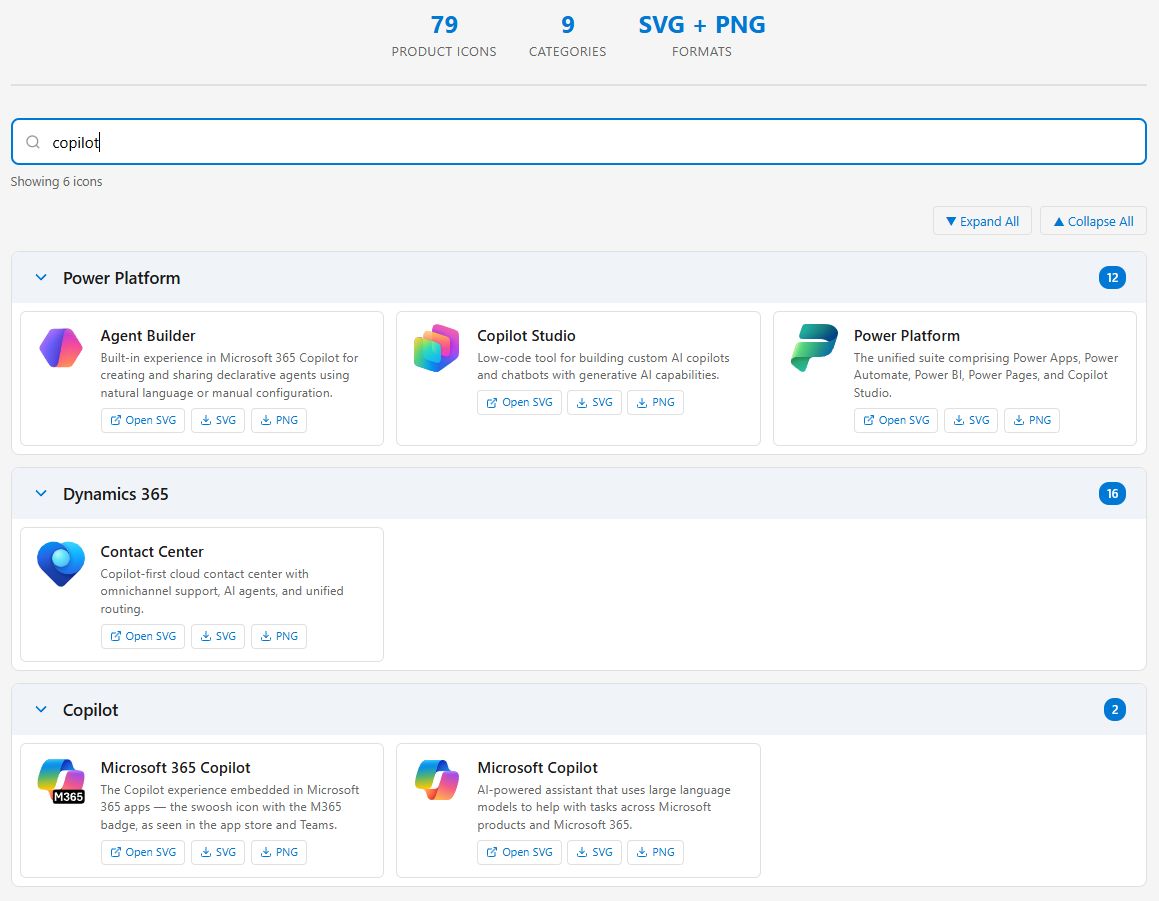
Here’s how an AI agent helped me build it, and why I think this changes how we approach these kinds of tasks.
The Problem: Icon Chaos
I write blogs. I create YouTube thumbnails. I build diagrams. Every time, I find myself hunting for the right Microsoft product icon. The community repo loryanstrant/MicrosoftCloudLogos is fantastic, but it includes historic versions going back years — folders like 2016-2020 negative-format sitting alongside current icons. Mix in JPGs, PNGs, PDFs, and it becomes a treasure hunt every time.
I wanted something simple: one icon per product, SVG format, latest version, clean naming, done.
Starting with a Conversation, Not Code
What struck me about this project was that I didn’t start by writing code. I started by describing what I wanted to Copilot CLI:
“I want to create a collection of the most recent 2025/26 icons for Microsoft, Power Platform and related products. I just want official and latest SVG in a simple repo.”
From that single prompt, the agent:
- Explored the source repo via the GitHub API — mapping out 9 categories, discovering year-prefixed subfolders, identifying which products actually had SVGs vs only PNGs
- Built a TypeScript fetching tool that cloned the repo and extracted the latest SVGs
- Discovered the Office CDN had Fluent brand icons at
res.cdn.office.netand probed it with 90+ product name variations to find 47 available icons - Combined both sources into a unified collection — 860 icons in the first pass
That first version was too much. I didn’t need 619 Azure service architecture icons. I didn’t need 4 sizes of the same SVG. So I told the agent to restructure.
The Curation Conversation
This is where working with an agent really shines. Rather than manually sorting through hundreds of files, I had a back-and-forth conversation about what mattered:
- “Do I really need multiple sizes of the same SVG?” — No. The agent normalised everything to
width="256" height="256"with the originalviewBoxpreserved, so they scale perfectly. - “I want consistent naming” — The agent proposed kebab-case (
power-apps.svg,copilot-studio.svg) and reorganised everything. - “Drop non-application icons” — Azure service icons gone. Down to 73 curated product icons.
Each decision took seconds to communicate. The agent implemented it in minutes. This iterative refinement is something that would have taken hours of manual file management.
Building the HTML Viewer
I didn’t just want a folder of SVGs. I wanted a browsable reference I could quickly search when writing a blog or creating an image. The agent built a single-file HTML viewer with:
- Real-time search — type “teams” and it instantly filters and expands matching categories
- Product descriptions — pulled from Microsoft Learn documentation via MCP
- Download buttons — one-click SVG or PNG download for each icon
- Alphabetical sorting — within each category
- DamoBird365 branding — because of course
All of this lives in a single index.html file with inline CSS and JavaScript. No build step. No dependencies. Clone the repo and open the file — it just works.
The Fluent 2 Discovery
Here’s where it got really interesting. I was reviewing the icons and noticed Forms didn’t look right. It was the old flat-style icon, not the modern Fluent 2 design I could see in the Microsoft 365 app launcher.
I pulled the icon from the CDN myself and dropped it on my desktop for comparison. The agent compared the two and discovered something crucial: the CDN serves different designs at different sizes. The _48x1.svg versions are the old flat style. The _24x1.svg versions are the new Fluent 2 designs with radial gradients and rounded shapes.
Every single one of our 32 CDN-sourced icons was the old version.
The agent downloaded all 32 fresh using the _24x1 URLs and re-normalised them. One conversation, one discovery, one fix — 32 icons updated to the latest design.
Official vs CDN: The Dynamics 365 & Power Platform Lesson
I also had access to official icon packs from Microsoft — the Dynamics 365 scalable SVGs and Power Platform icons that come from the official Microsoft download. When we compared these against what we had from the CDN, every single one was different.
The official icons are higher quality — proper 96×96 viewBoxes with richer detail. The CDN versions are simplified for web rendering at small sizes. For a reference library, the official versions are clearly better.
The agent replaced all of them, added 6 new Dynamics 365 products (Contact Center, Customer Insights, Finance & Operations, Human Resources, Intelligent Order Management, Sales Insights), and removed 4 retired products after checking Microsoft Learn for their end-of-life status.
The Machine-Readable Layer
Beyond the visual browser, the agent created icons.json — a machine-readable catalog of all 79 icons with IDs, names, categories, descriptions, and file paths. This means other tools, agents, or scripts can programmatically access the collection:
{
  "totalIcons": 79,
  "formats": ["svg", "png"],
  "icons": [
    {
      "id": "power-apps",
      "name": "Power Apps",
      "category": "power-platform",
      "description": "Low-code platform for building custom business applications...",
      "svg": "icons/power-platform/power-apps.svg",
      "png": "icons/power-platform/power-apps.png"
    }
  ]
}
Estimating the Time Saved
Let me break down what actually happened in this session and what it would have taken manually:
| Task | Manual Estimate | With Copilot CLI |
|---|---|---|
| Research icon sources (CDN, repos, downloads) | 3-4 hours | ~10 minutes of conversation |
| Download and organise 860 → 79 icons | 3-4 hours | ~15 minutes |
| Normalise all SVGs to consistent size | 1-2 hours | ~2 minutes |
| Build HTML viewer with search and download | 4-6 hours | ~20 minutes |
| Write 79 product descriptions from MS Learn | 2-3 hours | ~10 minutes |
| Generate PNGs from SVGs | 1 hour | ~3 minutes |
| Create icons.json catalog | 1 hour | ~2 minutes |
| Discover Fluent 2 issue and refresh all icons | 2-3 hours | ~10 minutes |
| Replace with official icon packs | 1-2 hours | ~5 minutes |
| GitHub repo setup and Pages deployment | 30 minutes | ~3 minutes |
| Total | ~20-28 hours (3-4 days) | ~80 minutes |
That’s roughly a 15x speedup. And honestly, some of those manual tasks — like probing 90 CDN URLs to discover which products have icons — I probably wouldn’t have bothered doing at all. The agent’s willingness to try things systematically meant we ended up with a more comprehensive result than I would have achieved manually.
The Bigger Impact: Standardisation for Everyone
The real value isn’t just saving me time. It’s that this collection is now publicly available for anyone who needs it:
- Bloggers and content creators — grab the right icon in seconds instead of hunting through Google Images
- Architects and diagram builders — consistent, high-quality SVGs that scale perfectly
- Developers —
icons.jsonprovides a programmatic API for tools and automations - Presenters — download PNGs directly for slides and mockups
Every icon is the same size, uses consistent naming, and is the latest official version. No more guessing whether you’ve got the 2019 or 2025 Teams icon.
What I Learned About Working with AI Agents
This project taught me a few things about how to get the most from an AI coding agent:
Start with intent, not instructions. I didn’t tell the agent how to build a TypeScript fetcher. I told it what I wanted and let it figure out the approach.
Iterate through conversation. The best decisions came from back-and-forth — “Do I need multiple sizes?” “What about these retired products?” Each question refined the result.
Trust but verify. The agent built everything, but I spotted the Forms icon issue by actually looking at the output. Human eyes caught what automation missed.
Let the agent do the tedious work. Probing 90 CDN URLs, writing 79 descriptions, normalising SVG attributes — these are tasks where an agent excels and where I’d lose motivation.
The agent remembers context. Across a long session with dozens of changes, the agent maintained understanding of the project structure, naming conventions, and decisions we’d already made.
Go Explore
The collection is live and open source:
- 🔍 Browse the icons — searchable HTML viewer
- 📦 GitHub repo — clone, fork, or contribute
- 📋 icons.json — machine-readable catalog
If you spot a missing product or an icon that’s been updated, feel free to raise an issue or PR. The goal is to keep this as the go-to reference for anyone working with Microsoft Cloud products.
Final Thoughts
A few years ago, this project would have been a weekend side project that I’d start, get halfway through, and abandon when the tedium of downloading and organising files got too much. With Copilot CLI, it went from idea to published GitHub Pages site in a single session.
That’s not just about speed. It’s about lowering the threshold for useful projects that benefit the community. When the cost of building something drops from days to hours, you build things you wouldn’t have otherwise. And everyone benefits.
For more tips on automation, AI, and making the most of the Microsoft ecosystem, check out my YouTube channel at DamoBird365.