Remember Clippy? The little paperclip that popped up in Microsoft Office with helpful (and sometimes not-so-helpful) suggestions? Well, I’ve built a browser extension that brings him back — sort of. Clippy for Copilot swaps the Microsoft Copilot icon in Office web apps with one of four classic characters, and honestly, it’s the most fun I’ve had building something in a while.
Why Clippy? Why Now?
Look, I love Copilot. It’s genuinely useful and it’s changing how we work with Office. But there’s something about that little Copilot icon sitting in the toolbar that just felt like it was missing… personality. And then it hit me — what if Clippy was back? Not the annoying assistant that interrupted you every five minutes, but just his face, sitting quietly in the corner where the Copilot button lives.
It started as a joke. A “what if” moment. But the more I thought about it, the more I wanted to actually build it. And once I started, I couldn’t stop until it worked perfectly — zero flash, instant replacement, across every Office web app.
What the Extension Does
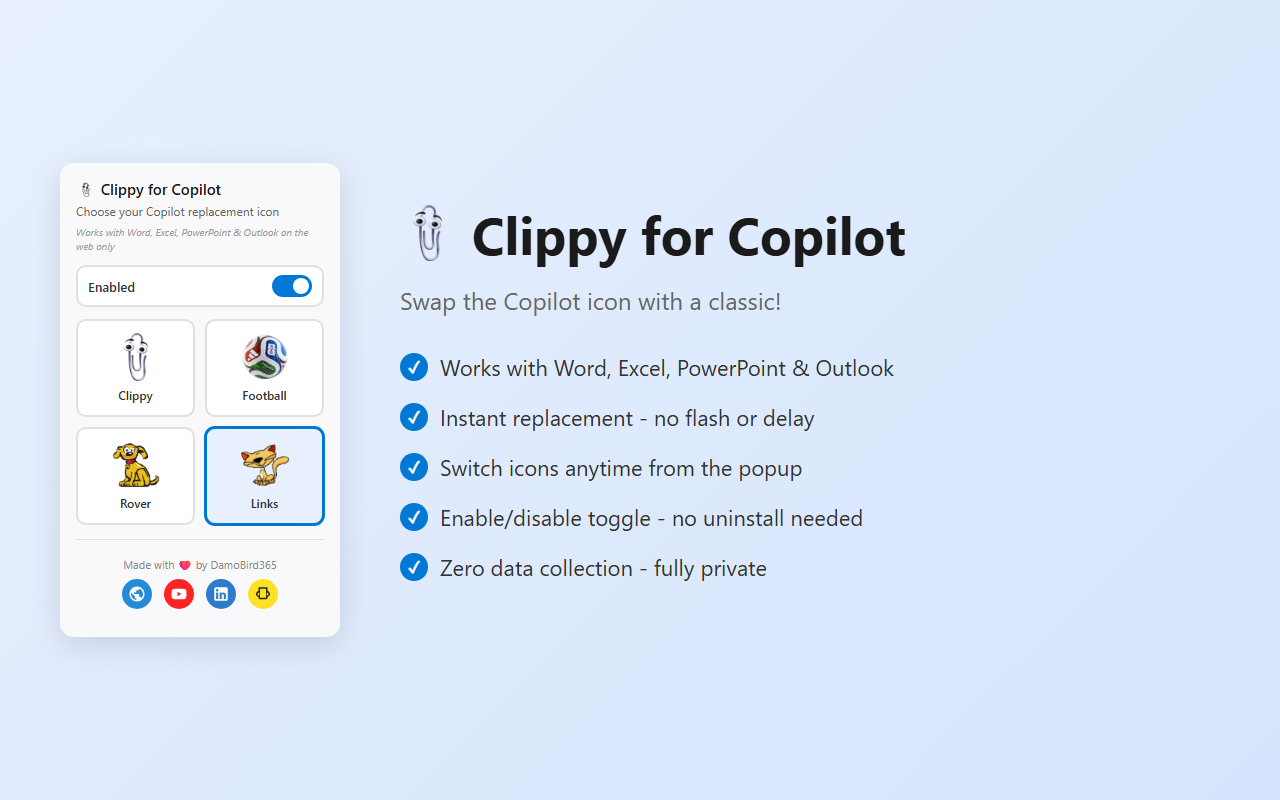
Clippy for Copilot replaces the Copilot icon (the Dynamic Action Bar button) in Microsoft Office web apps with a retro character of your choice. It’s purely cosmetic — Copilot still works exactly the same, you just get a friendlier face on the button.
You get four icon choices:
- 📎 Clippy — The legendary Office Assistant (the default, obviously)
- 🐕 Rover — The search dog from Windows XP
- 🐱 Links — The cat from Microsoft Office 97
- ⚽ Football — For the sports fans out there
Works Across All Office Web Apps
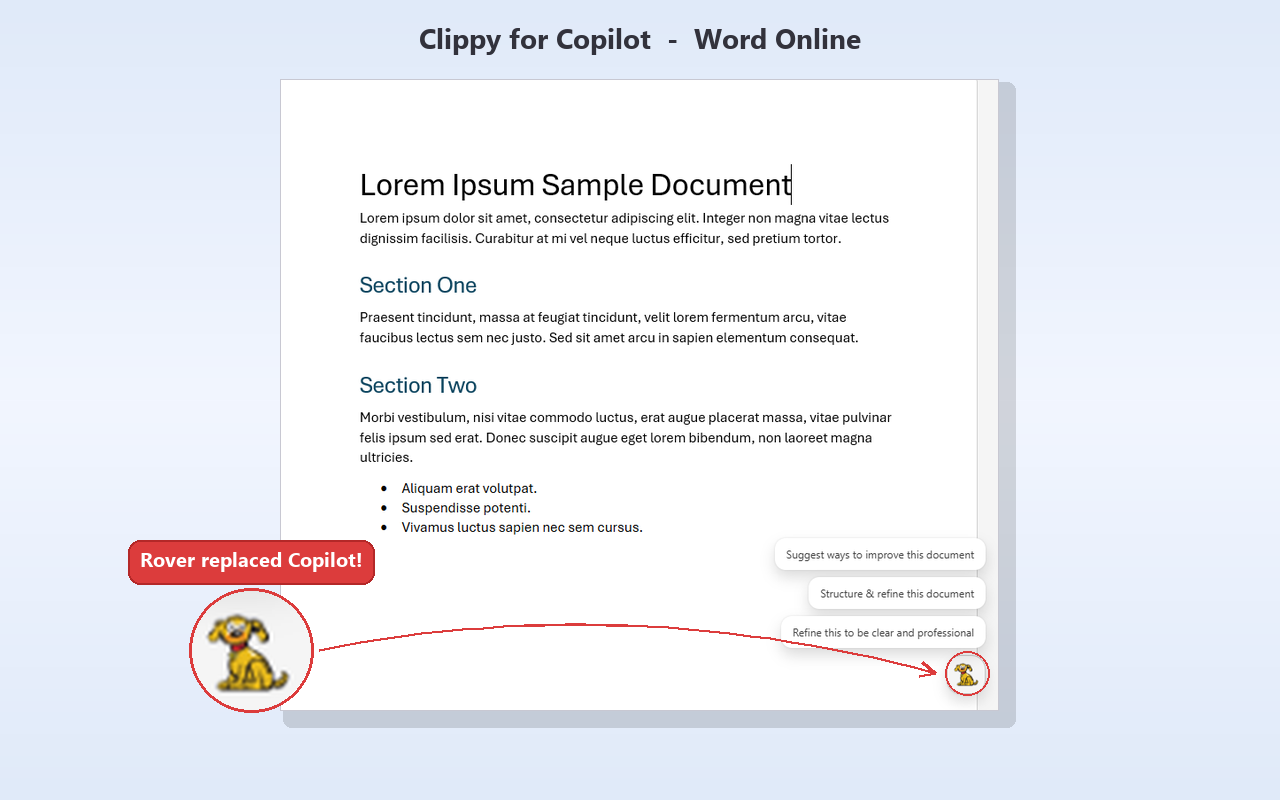
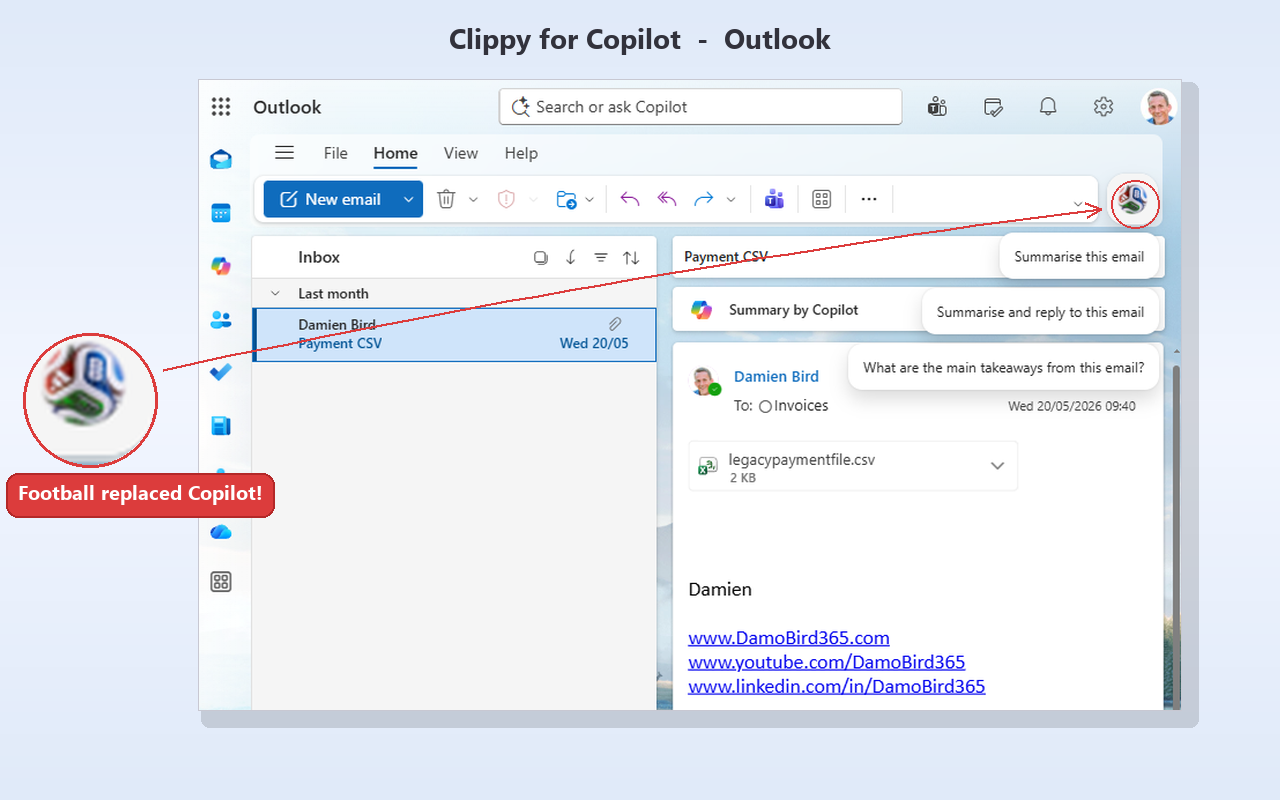
The extension works with Word Online, Excel Online, PowerPoint Online, and Outlook on the web. Wherever that Copilot button appears, your chosen character takes its place.
How to Use It
Getting started couldn’t be simpler:
- Install the extension from the Chrome Web Store (works on Edge too)
- Open any Office web app — Word, Excel, PowerPoint, or Outlook
- The Copilot icon is automatically replaced with Clippy!
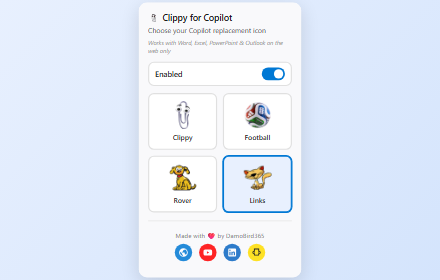
- Click the extension icon in your toolbar to switch characters — changes apply instantly, no page refresh needed
There’s also an enable/disable toggle in the popup, so you can turn it off without uninstalling if you need to show someone the “real” Copilot button.
Built with AI, Reviewed by AI, Tested with AI
This extension was built using GitHub Copilot CLI — continuing my journey along the no-code to pro-code spectrum. But what made this project special was the review process. I had two AI models independently review the codebase, and their findings were synthesized into a comprehensive set of fixes.
The review caught some genuinely important issues:
- Outlook wasn’t working — it had moved to a new domain (
outlook.cloud.microsoft) that wasn’t in the manifest - Flyout button contamination — a wildcard selector was matching buttons like “Collapse Copilot Chat” and “Research with Copilot”, not just the main Copilot button
- An XSS pattern in the popup —
innerHTMLwith template literals was replaced with safecreateElementDOM construction
We even used Playwright to connect to a live Edge browser via CDP to inspect the actual DOM structure of Copilot buttons across all four Office apps. That’s how we discovered the differences in button IDs, selectors, and domains — information you simply can’t get from documentation alone.
Privacy First
This extension takes privacy seriously:
- ❌ No data collection whatsoever
- ❌ No network requests — everything runs locally
- ❌ No page content access beyond the Copilot button
- ❌ No injection on login pages —
microsoftonline.comis excluded - ✅ The only permission is
storage— to remember your icon choice - ✅ Manifest V3 — modern, secure extension architecture
Your browsing is your business. The extension does one thing and one thing only — swaps an icon.
Get Clippy for Copilot
Clippy for Copilot is available now on the Chrome Web Store — completely free and open source. Works on Chrome, Edge, and any Chromium-based browser.
👉 Install Clippy for Copilot from the Chrome Web Store
- Click “Add to Chrome” (or “Add to Edge”)
- Open any Office web app — Word, Excel, PowerPoint, or Outlook
- Clippy is back! 📎
- Click the extension icon in your toolbar to switch characters
Final Thoughts
Is this extension going to revolutionise your productivity? No. Is it going to make you smile every time you open Word Online and see Clippy’s face staring back at you? Absolutely.
Sometimes the best projects are the ones that are just fun. This started as a daft idea and turned into a genuine engineering challenge — getting zero-flash icon replacement across four different Office apps with four different DOM structures, all running in cross-origin iframes. I learned a lot, had a great time building it, and now Clippy is back where he belongs.
If you’re the kind of person who misses the old Office assistants, or you just want to confuse your colleagues in your next Teams screen-share — give it a try. And if you want a new character added, let me know!
For more on automation, AI, and the occasional nostalgic side project, check out my YouTube channel: DamoBird365