A Copilot demo is only as good as the data it has to work with. I wanted to demonstrate a scheduled prompt that reviews the previous seven days of email, identifies anything urgent, extracts actions and lessons learned, and prepares a Monday morning update for a team.
There was one fairly obvious problem: I needed a mailbox full of realistic emails first.
Rather than manually creating 30 messages, changing their dates and trying to remember which ones should be unread or important, I built a reusable PowerShell utility that creates the demo data through Microsoft Graph. The result was a mailbox containing 30 synthetic emails spread across seven days, ready for Copilot to summarise.
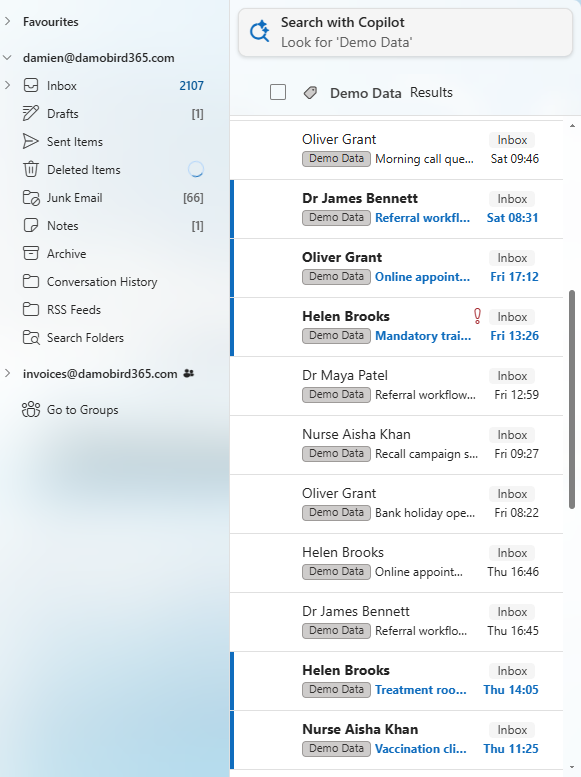
Why I Needed Realistic Mailbox Data
The scenario in the video is aimed at office managers, team managers and practice managers who receive updates from different colleagues throughout the week.
The scheduled Copilot prompt needs enough variation to produce a useful summary. If every email says “test” and arrives on the same day, the output is not going to demonstrate very much.
I wanted the mailbox to contain:
- Different senders and job roles
- Messages covering the previous seven days
- A mixture of read and unread email
- Normal and high-importance items
- Individual and group actions
- Urgent operational updates
- Lessons learned and follow-up conversations
- Enough content for Copilot to group and summarise
The final configuration contains 30 emails from five synthetic colleagues:
| Persona | Role in the demo | Messages |
|---|---|---|
| Helen Brooks | Practice management and administration | 10 |
| Dr Maya Patel | GP and clinical operations | 6 |
| Nurse Aisha Khan | Nursing and vaccination activity | 5 |
| Oliver Grant | Patient services | 5 |
| Dr James Bennett | GP and clinical governance | 4 |
The messages cover topics including clinical operations, vaccination clinics, referrals, patient services, compliance training, medicines safety, business continuity and staff planning.
I also included 13 unread messages and four high-importance messages. That gave Copilot something meaningful to prioritise rather than simply producing a chronological list.
Spreading 30 Emails Across Seven Days
Each message in the JSON configuration has a daysAgo value from 0 to 6:
0means today1means yesterday6means six days agonullasks the script to choose a random time within the previous seven days
My 30-message dataset is distributed like this:
daysAgo | Number of messages |
|---|---|
| 6 | 2 |
| 5 | 4 |
| 4 | 4 |
| 3 | 4 |
| 2 | 5 |
| 1 | 6 |
| 0 | 5 |
That gave me a believable working week instead of a mailbox that looked as though someone had imported everything five minutes before pressing record. Which, to be fair, is exactly what I was doing - I just did not want it to look like it.
Download My 30-Email Configuration
You can download the exact demo-emails.json file used for this Copilot demo.
The full PowerShell utility is available in the public FakeEmailsForDemos GitHub repository.
The root of the configuration identifies the mailbox and the Outlook category used for cleanup:
{
  "recipientAddress": "damien@damobird365.com",
  "category": "Demo Data",
  "messages": []
}
Each message then defines its synthetic sender, visible recipients, topic, subject, HTML body, age, importance and read state:
{
  "fromName": "Dr Maya Patel",
  "fromAddress": "maya@damobird365.com",
  "toRecipients": [
    {
      "name": "Damien",
      "address": "{{recipientAddress}}"
    },
    {
      "name": "Helen Brooks",
      "address": "helen@damobird365.com"
    }
  ],
  "topic": "Clinical operations",
  "subject": "Review of same-day appointment capacity",
  "bodyHtml": "<p>Hi Damien,</p><p>...</p>",
  "daysAgo": 6,
  "importance": "normal",
  "isRead": true
}
{{recipientAddress}} is replaced at run time with the mailbox configured at the top of the file. The other addresses are synthetic colleagues included to make direct and group emails look realistic.
How the PowerShell Utility Works
The project is split into a few small scripts:
Run-DemoMailbox.ps1is the user-friendly launcher.Seed-DemoMailbox.ps1validates the JSON and creates the messages.Remove-DemoMailboxMessages.ps1removes the generated data.DemoMailbox.Common.ps1contains shared validation, recipient and run-tracking functions.Run-DemoMailbox.cmdprovides a double-click option for Windows users.
The launcher creates a local demo-emails.json from the included sample when one does not already exist. It then uses device-code authentication to connect to Microsoft Graph with delegated permissions for the signed-in user’s mailbox.
The required delegated permissions are:
Mail.ReadWriteUser.Read
The tool does not send the synthetic messages across the internet. It creates message resources directly in the signed-in user’s Inbox, tags them with the Demo Data Outlook category and adds identifying metadata so they can be removed later.
Preview Before Changing the Mailbox
I can validate the complete configuration without signing in or changing a mailbox:
.\Run-DemoMailbox.ps1 -Preview
The preview lists all 30 planned messages, including the sender, topic, subject and requested date.
For direct use of the seed script:
.\Seed-DemoMailbox.ps1 -ConfigPath .\demo-emails.json -WhatIf
This was useful while creating the data because a malformed email address, unsupported importance value or invalid daysAgo value fails before anything reaches Microsoft Graph.
Creating the Demo Emails
Once the preview looks correct, the simplest option is:
.\Run-DemoMailbox.ps1
On first use, the launcher installs the Microsoft Graph authentication module if required and displays a device sign-in code. The configured mailbox must match the signed-in account.
Each seed operation receives a unique run ID. The utility writes an ignored local manifest containing the IDs of successfully created messages. It updates that manifest after every successful creation, so even a partially completed run can be cleaned up accurately.
The result is the mailbox shown at the beginning of the video: emails from GPs, nursing staff, patient services and the practice manager, with different dates and read states across the week.
Using the Data in the Copilot Demo
With the mailbox prepared, I asked Microsoft 365 Copilot to review messages from the previous seven days and create a draft weekly update.
The prompt specified:
- The date range to search
- The senders whose messages should be included
- The intended recipients
- Urgent information
- Lessons learned
- Individual actions
- Group actions
- A short “too long; didn’t read” summary
Copilot reviewed the generated messages and created a draft in Outlook. I could inspect it in Copilot, open it in the Drafts folder and make normal edits before sending.
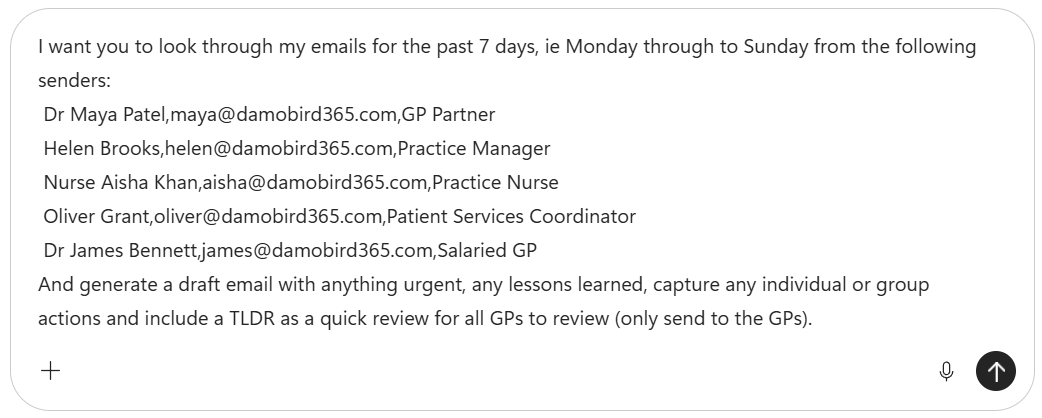
The important part is that this remained a draft. The scheduled prompt did the repetitive work of finding and organising the information, but I retained control over the final email.
Scheduling and Improving the Prompt
I scheduled the prompt to run every Monday at 7:00am. The idea is that the draft is ready before the working day starts, giving the manager time to review it before sending it to the team.
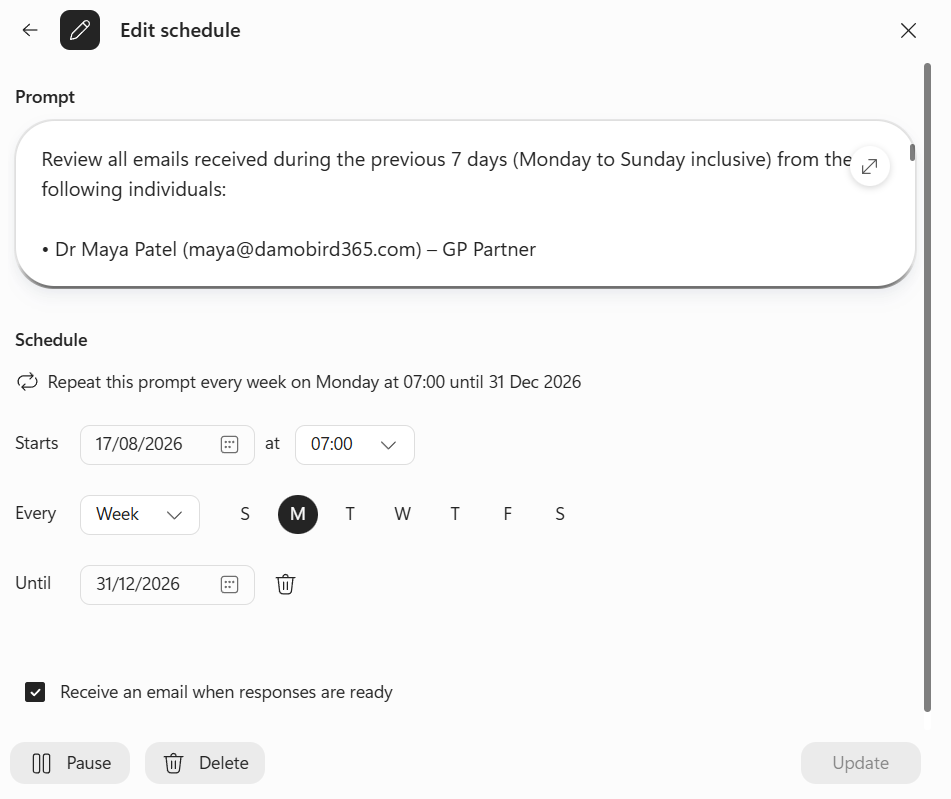
I then used the Prompt Coach agent to improve the original prompt. I wanted:
- The short summary written as prose
- The remaining information organised into tables
- Red, amber and green status categories
- Clearer columns and section layouts
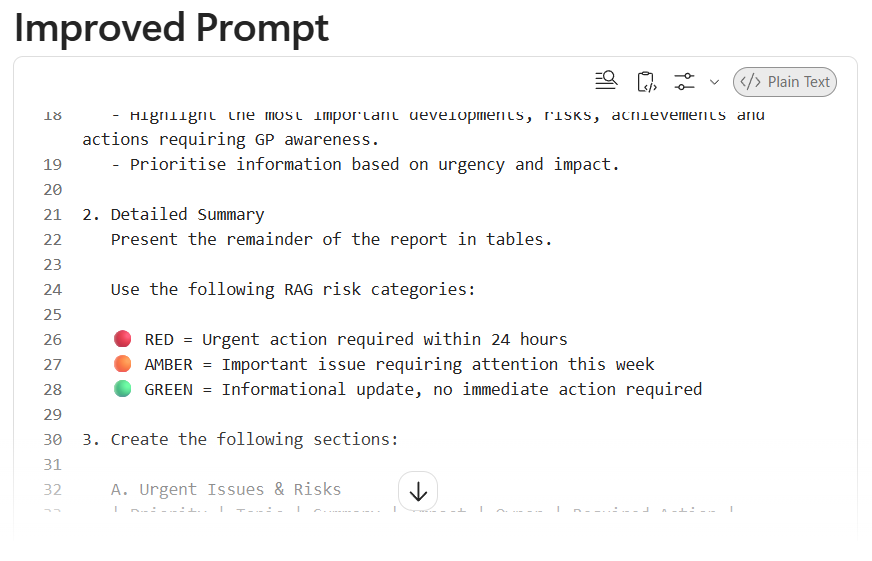
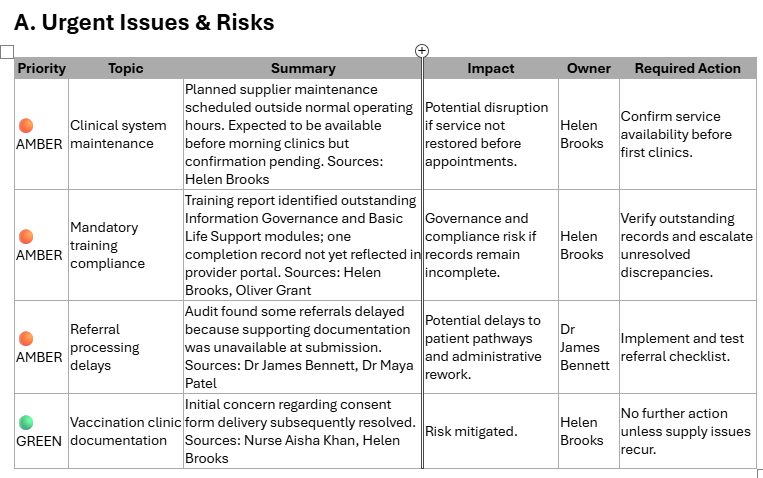
The first improved version did not create the draft successfully. That was actually a useful part of the demo because it showed the need to test and iterate. I made the instruction more explicit by telling Copilot to create the draft in my mailbox, ready to send, ran the schedule again and received the formatted draft.
The final output included the summary and tabulated red, amber and green information. I could then remove irrelevant rows, add details that were not in the source emails and check the recipients before pressing Send.
Cleaning Up After the Demo
Creating demo data is only half the job. I also wanted to reset the mailbox without manually finding and deleting 30 messages.
To remove the messages from the latest recorded run:
.\Run-DemoMailbox.ps1 -Remove
To remove all Inbox messages verified as having been created by the utility:
.\Run-DemoMailbox.ps1 -RemoveAll
There is also a category-only compatibility mode for data created by older versions:
.\Run-DemoMailbox.ps1 -RemoveByCategory
I prefer the latest-run or metadata-verified cleanup modes because another legitimate email could also use the Demo Data category.
Important Microsoft Graph Limitation
This utility deliberately uses an unsupported demo technique.
Microsoft Graph supports creating draft messages, but it does not officially support importing arbitrary received messages into an Inbox with fake sender details and historical received dates. Exchange can reject or normalise the synthetic sender and can replace the requested date.
The script reads each created item back and reports whether the sender and historical date were preserved. Results can vary between Microsoft 365 environments.
Use this only in a demo or development mailbox that you own or are authorised to modify. If you need genuine received mail with authentic transport metadata, use licensed or shared test sender mailboxes and send the messages normally through Graph.
Making the Dataset Your Own
The included sample can be adapted for a sales team, service desk, project office, school, legal practice or almost any scenario where Copilot needs a realistic mailbox to analyse.
Change:
- The synthetic personas and addresses
- The business topics
- The subjects and HTML bodies
- The balance of read and unread messages
- The importance values
- The distribution across the previous seven days
Every message should still include {{recipientAddress}} as a visible recipient so it appears naturally addressed to the mailbox being seeded.
Final Thoughts
The scheduled prompt is the feature demonstrated in the video, but the synthetic mailbox data is what made the demonstration possible.
Building a repeatable seeding and cleanup utility means I do not need to manually prepare Outlook before every recording. I can preview the dataset, create all 30 messages, demonstrate Copilot against a realistic seven-day history and then clear the mailbox afterwards.
It also makes the demo reusable. Swap the JSON configuration and the same PowerShell scripts can prepare a completely different mailbox scenario without changing the underlying code.
You can find the complete project on GitHub and download the exact 30-message configuration used in my video.
For more practical Microsoft 365 Copilot, Copilot Studio, Power Platform and automation demos, subscribe to DamoBird365 on YouTube.