I wanted a flow that takes a PowerPoint template full of {{Placeholders}}, swaps in real client data, and spits out a finished, on-brand sales deck — all from a single button press. The clever bit is that the actual find-and-replace code is written for me by an AI prompt inside Power Platform. It worked… mostly. A couple of placeholders stubbornly refused to replace, and the fix taught me something genuinely useful about how PowerPoint stores text. Let me walk you through it.
The Idea: A Prompt That Writes the Code
Rather than hand-writing Python to edit a .pptx, I let a Power Platform prompt do the heavy lifting. I describe the rules in plain English, pick a model, and the prompt generates and runs the code that manipulates the file. Here’s the prompt I built — “Populate Client Sales Deck Template”:
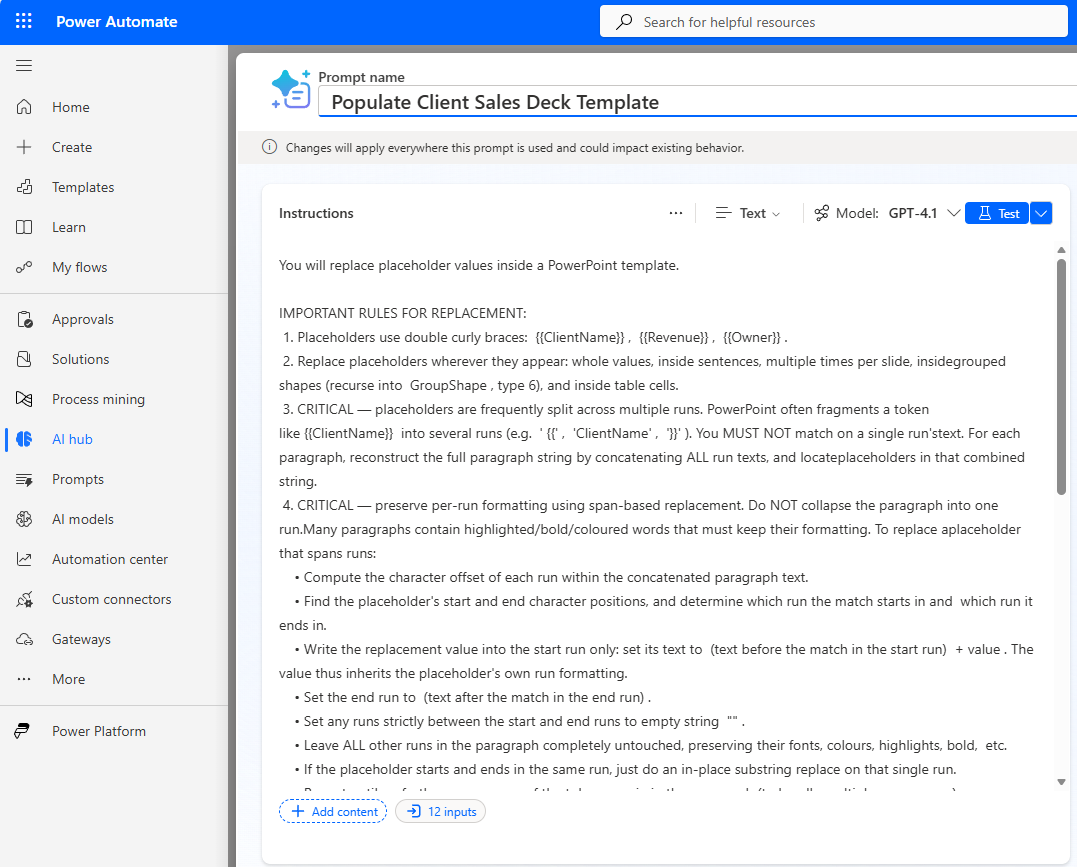
The beauty here is the no-code-to-pro-code spectrum in action: I’m not writing a script, I’m writing instructions. The prompt turns those instructions into working code behind the scenes.
Grab the Prompt
Want to reuse it? Here’s the full, battle-tested prompt. You can download it as a text file or expand the box below to copy and paste it straight into your own Power Platform prompt.
📋 Click to expand the full prompt
You will replace placeholder values inside a PowerPoint template.

IMPORTANT RULES FOR REPLACEMENT:

1. Placeholders use double curly braces: {{ClientName}}, {{Revenue}}, {{Owner}}.

2. Replace placeholders wherever they appear: whole values, inside sentences, multiple
   times per slide, inside grouped shapes (recurse into GroupShape, type 6), and inside
   table cells.

3. CRITICAL — placeholders are frequently split across multiple runs. PowerPoint often
   fragments a token like {{ClientName}} into several runs (e.g. ' {{', 'ClientName', '}}').
   You MUST NOT match on a single run's text. For each paragraph, reconstruct the full
   paragraph string by concatenating ALL run texts, and locate placeholders in that
   combined string.

4. CRITICAL — preserve per-run formatting using span-based replacement. Do NOT collapse
   the paragraph into one run. Many paragraphs contain highlighted/bold/coloured words
   that must keep their formatting. To replace a placeholder that spans runs:
     - Compute the character offset of each run within the concatenated paragraph text.
     - Find the placeholder's start and end character positions, and determine which run
       the match starts in and which run it ends in.
     - Write the replacement value into the start run only: set its text to
       (text before the match in the start run) + value. The value thus inherits the
       placeholder's own run formatting.
     - Set the end run to (text after the match in the end run).
     - Set any runs strictly between the start and end runs to empty string "".
     - Leave ALL other runs in the paragraph completely untouched, preserving their fonts,
       colours, highlights, bold, etc.
     - If the placeholder starts and ends in the same run, just do an in-place substring
       replace on that single run.
     - Repeat until no further occurrences of the token remain in the paragraph (to handle
       multiple occurrences).
     - NEVER assign to shape.text or text_frame.text, and NEVER move all paragraph text
       into run[0] and blank the rest — that destroys mixed formatting.

5. For each token, replace ALL occurrences of {{TokenName}} with its value; leave no
   placeholders behind, including split ones.

6. If a placeholder is not found, log it and continue.

7. Process ALL text frames in ALL shapes, nested group shapes, and table cells on every
   slide (restrict to a specific slide only if one is explicitly provided).


TOKENS
Token Name      | Description                                                   | Page | Value
ClientName      | Name of the customer or organisation the deck is prepared for | 01   | ClientName
AccountManager  | Person responsible for the account / primary contact          | 01   | AccountManager
Date            | Presentation or proposal date                                 | 01   | Date
Industry        | Customer's industry or sector                                 | 02   | Industry
Revenue         | Customer's annual revenue or company size indicator           | 02   | Revenue
Region          | Primary geography or operating region                         | 02   | Region
PackageName     | Name of the recommended solution/package                      | 03   | PackageName
Price           | Total investment or pricing for the package                   | 03   | Price
Discount        | Discount applied to the recommendation                        | 03   | Discount
Owner           | Person responsible for follow-up / ongoing engagement         | 04   | Owner
FollowUpDate    | Date by which the owner will follow up                        | 04   | FollowUpDate


INPUT
PowerPoint template file named Template.

OUTPUT
A modified PowerPoint file with all placeholders replaced.
The Flow: Wiring It All Together
The flow itself is refreshingly simple. A manual trigger collects the field values (Client Name, Account Manager, Price, Discount and so on), I grab the template file, hand everything to the Run a prompt action, then compose and save the finished deck back to SharePoint.
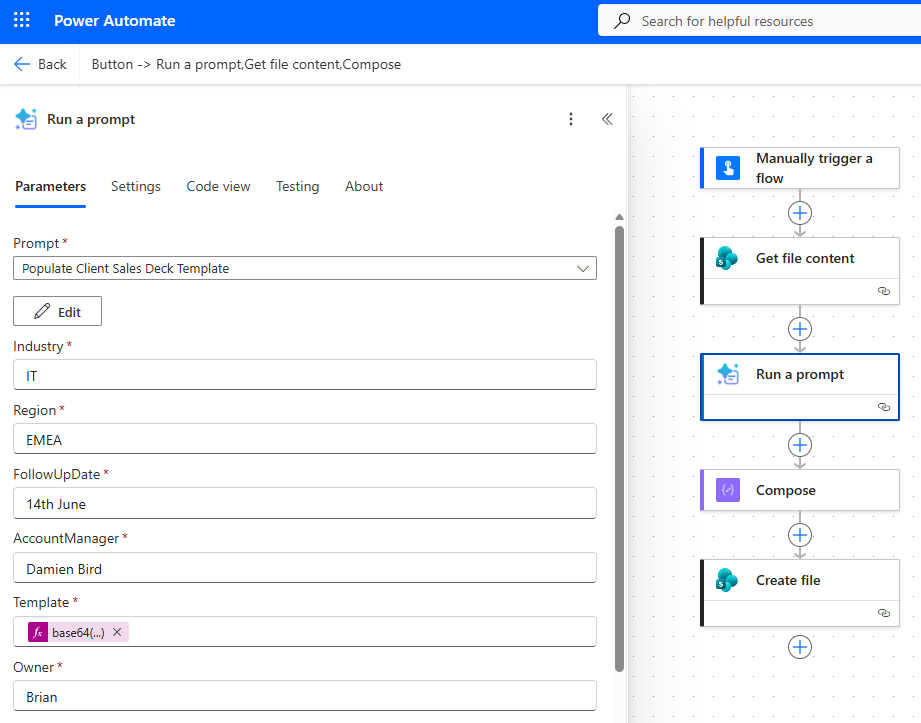
Each input — Industry, Region, FollowUpDate, AccountManager, Owner — maps to a {{Token}} in the slide. The template comes in as base64, the prompt does its magic, and out pops a populated presentation.
The Template: Branded Placeholders
This is the part I’m most pleased with. The template isn’t just plain text — it’s a properly designed, branded slide with highlighted package names, coloured prices and discounts. The placeholders sit right inside that styling:
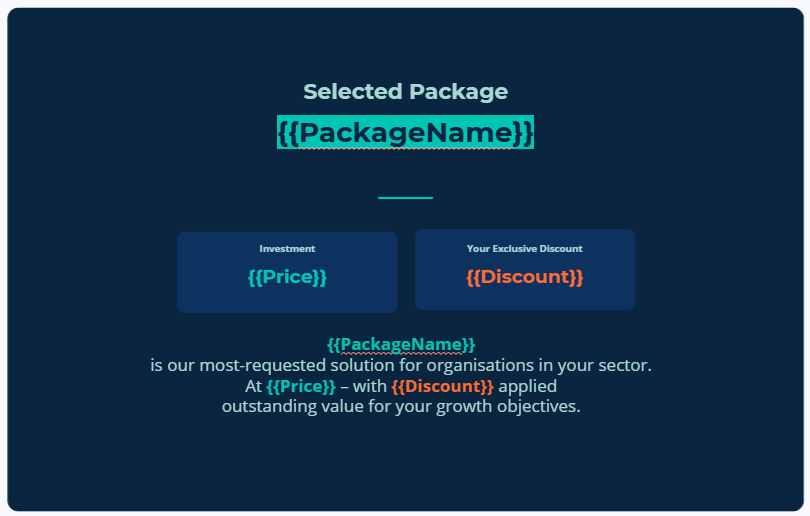
Notice {{PackageName}} has that teal highlight, {{Price}} is in brand blue, and {{Discount}} is orange. That formatting matters — and it’s exactly what nearly tripped me up.
Want to follow along? Download the reusable template and try it with the prompt above.
The Gotcha: Placeholders Split Across “Runs”
Here’s where it got interesting. Most placeholders replaced perfectly, but {{ClientName}} and {{AccountManager}} were ignored every single time. The code looked correct. So why?
What’s a “run”, in layman’s terms?
When you type text into PowerPoint, it doesn’t store a sentence as one tidy string. Behind the scenes it chops your text into little chunks called runs, and it creates a new chunk every time anything changes — a different colour, a bold word, or even just where the spell-checker drew a wavy red line.
So even though you see {{ClientName}} as one word on the slide, PowerPoint might secretly be storing it as three separate pieces:
[' {{'] ['ClientName'] ['}}']
My original code was checking each piece on its own, asking “does this chunk contain {{ClientName}}?” — and the answer was always no, because no single chunk held the whole thing. The placeholder was hiding in plain sight, split across the seams.
The ones that did work ({{Date}}, {{Industry}}) just happened to land in a single tidy chunk. Pure luck.
Fix attempt #1: Glue the chunks together
The first fix was to stop reading chunk-by-chunk. Instead, I told the prompt to glue all the chunks in a paragraph back together into one string, do the replacement on that, then write the result back. That instantly fixed the missing placeholders. 🎉
But it introduced a new problem…
Fix attempt #2: Don’t flatten my formatting
My first rewrite wrote the whole repaired sentence back into the first chunk and emptied the rest. That works for plain text — but remember those highlighted, colourful placeholders? Flattening everything into one chunk meant the entire paragraph took on a single style. My lovely teal {{PackageName}} and orange {{Discount}} lost their colours and collapsed into one boring line.
The final fix was subtler: replace the placeholder only within the specific chunks it actually occupies, and leave every other chunk — and its formatting — completely untouched. The replacement value drops into the placeholder’s own chunk, so $100,000 inherits the blue, 10% keeps its orange, and the surrounding narrative stays exactly as designed.
The Result: A Personalised Deck in Seconds
With the prompt rewritten, every field injects at run-time and the branding survives intact:
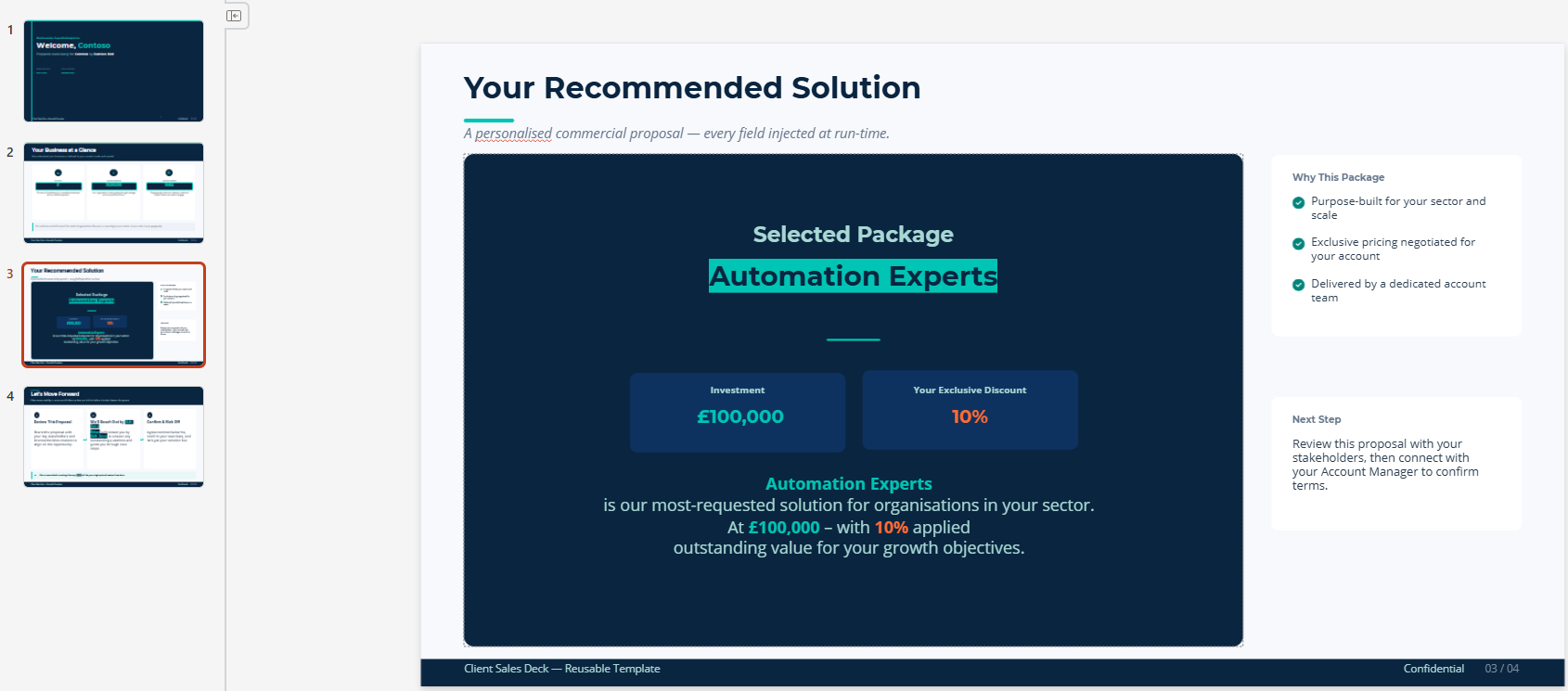
Highlighted package name? ✅ Coloured price and discount? ✅ Not a single {{ }} left behind? ✅ A fully personalised commercial proposal, generated from a button press.
Practical Takeaways
- PowerPoint (and Word) split text into “runs”. If a find-and-replace “isn’t working” on some words but not others, split runs are almost always the culprit. The same trap exists in Word documents.
- Reconstruct the whole paragraph before searching — never match on individual runs.
- When you write the result back, be surgical. Only touch the runs the placeholder occupies, so highlighted and coloured text keeps its styling.
- Iterate the prompt, not the code. I never touched the generated Python by hand. Each time, I refined the plain-English rules and let the prompt regenerate the code. That’s the no-code-to-pro-code spectrum working for you.
- Be specific in your prompt rules. Vague instructions (“replace the placeholders”) gave vague code. Spelling out the run-splitting behaviour and the formatting requirement is what produced robust code.
Final Thoughts
What I love about this is that the hard-won knowledge — the fact that PowerPoint shreds your text into runs — didn’t have to live in code I maintain. It lives in a prompt, in words I can read and tweak. Once I understood the underlying problem, fixing it was a case of describing the behaviour I wanted clearly enough for the model to generate the right code. That’s a really powerful pattern: you bring the domain insight, the AI brings the implementation.
If you’re building document-automation flows, give this a go — and the next time a placeholder won’t replace, you’ll know exactly where it’s hiding.
Enjoyed this? I share Power Platform, Copilot Studio and automation tips over on my YouTube channel — come and say hi: youtube.com/@DamoBird365