The AI landscape is shifting fast — from tools that just talk to us to agents that actually do work for us. In this post, I’m breaking down three things you need to understand right now: Cowork, Scout, and the new Copilot Studio UI. Whether you’re an end user trying to make sense of all the new terminology or someone looking to automate their working day, this is your starting point.
What Is Cowork and How Is It Different from Copilot?
The first thing to get straight in your mind is that Cowork is not Copilot. Yes, it lives inside the Microsoft 365 Copilot experience and yes, it’s a separate agent you install — but it has a totally different interface and a totally different purpose.
Traditional Copilot is great for quick interactions: summarise this document, find the top five points from a meeting, draft me an email. Cowork is for long-running tasks. Think of it as giving an agent a brief and letting it go away and work on it — researching, creating documents, building presentations, even emailing the results to your team — all while you get on with something else.
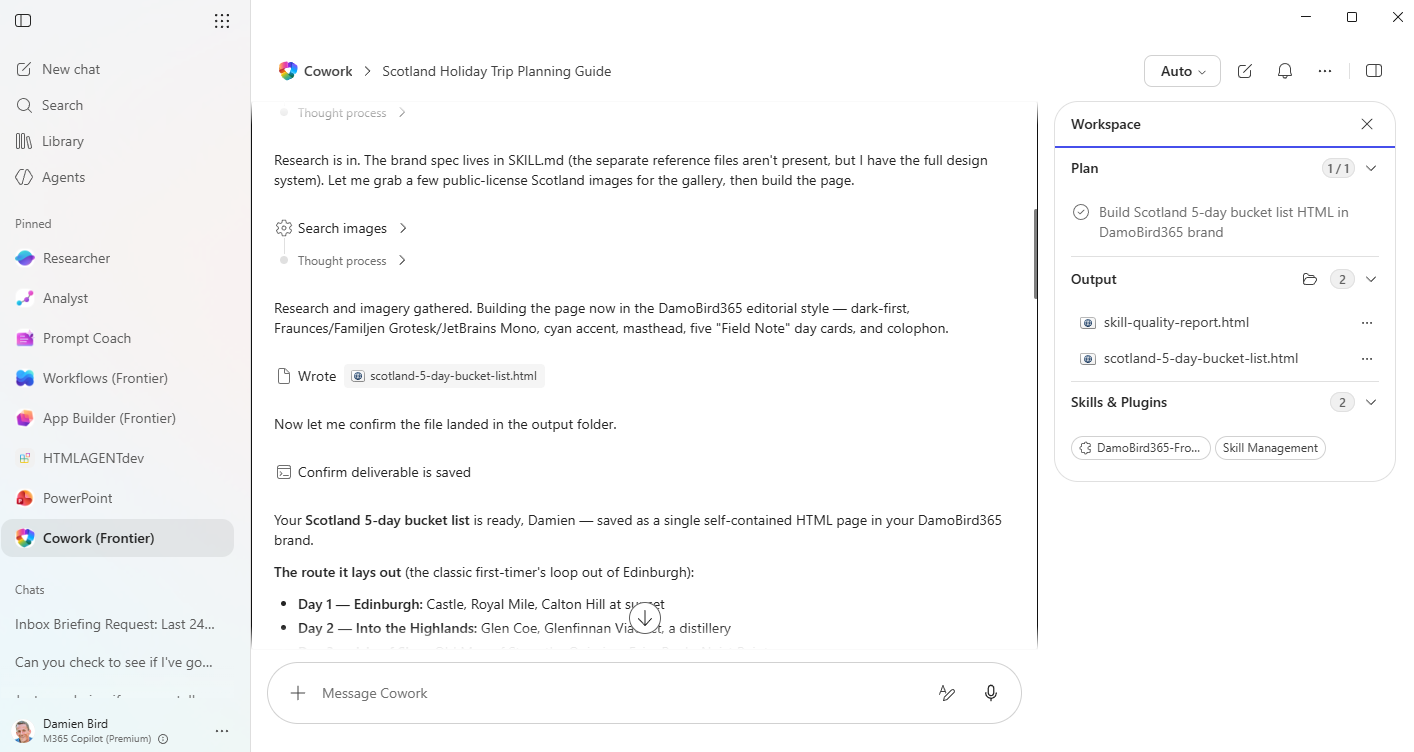
Getting Access to Cowork
Before you go searching for Cowork, there’s an important prerequisite: your organisation’s Microsoft 365 admin needs to enable Frontier capabilities. Cowork is built on Anthropic’s models, which is a particular sticking point in Europe and the UK public sector due to data residency requirements. Microsoft has indicated that local model infrastructure is coming, but for now, it’s a blocker for certain industries. If you’re running your own tenant for experimentation, you’ll have an easier time getting it enabled.
Your First Cowork Task
Using Cowork is straightforward — you prompt it with a task, and it gets to work. For example, I asked it to research Scotland as a holiday destination and prepare me a 5-day travel bucket list as an HTML file. Within a couple of minutes, it had searched the web, gathered images, and produced a fully interactive HTML page.
You can also tell it to email the result to you, post it to a Teams channel, or save it in a specific format. The beauty of Cowork is that you can fire it off from your desktop or your phone — imagine being on the road and saying, “I need a document prepared for my meeting tomorrow, go through my project folder and produce something.” It’s all connected to Microsoft 365, so it has the context, the memory, and the access to your data.

Everything Ends Up in OneDrive
One thing worth knowing: all the files Cowork creates end up in your OneDrive. You’ll find a Documents > Cowork Sessions folder, and each session gets its own folder with a unique ID. So if you want to go back and grab assets from a previous session, they’re all there.
Skills — The Buzzword of 2026
If there’s one concept you need to wrap your head around this year, it’s skills. They’re appearing everywhere — in Cowork, in Copilot Studio, in GitHub Copilot — and they’re going to define how we build repeatable processes for agents.
What Exactly Is a Skill?
A skill is essentially a procedure manual for an agent, written as a Markdown file. It has a title, a description, and detailed steps describing how to perform a particular task. Think of it like a standard operating procedure (SOP), but one that an AI agent can read and follow.
How to Create a Skill (the Easy Way)
The natural way to build a skill is beautifully simple:
- Have a conversation with Cowork about what you want to achieve — go through the iterative process of prompting, refining, and getting to an output you’re happy with.
- Ask Cowork to create a skill from it. Literally just say, “Create me a skill so that next time I mention this, you can perform this task for me.”
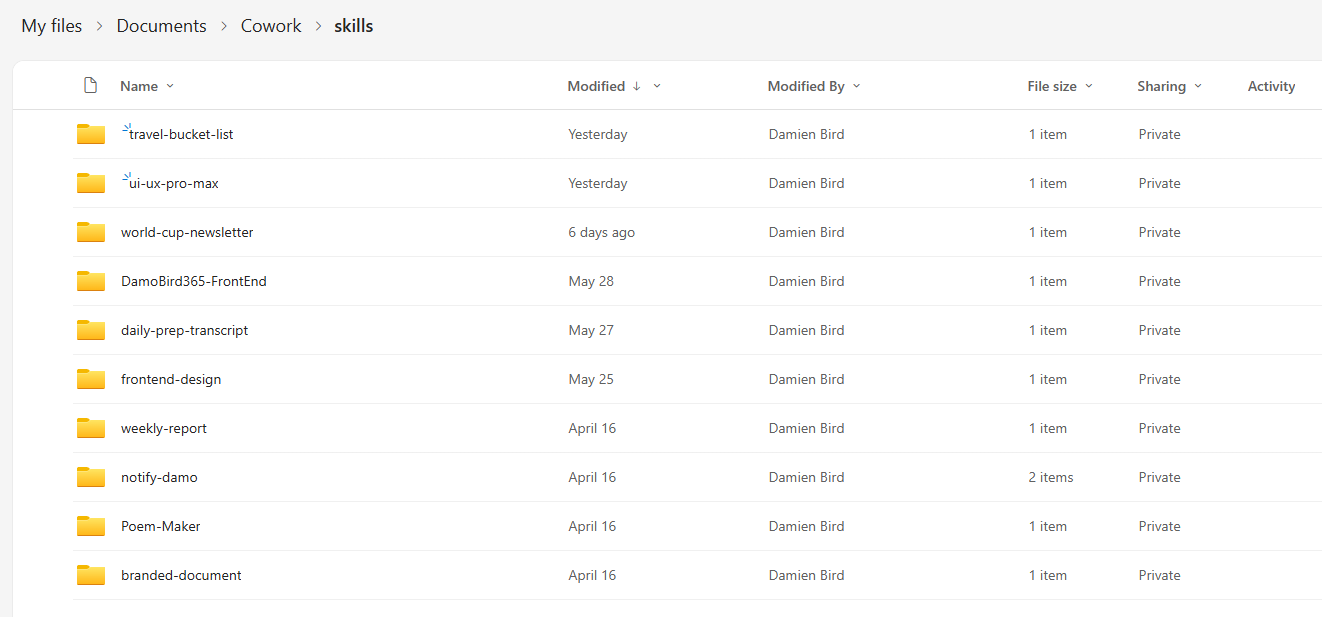
- Cowork will generate a Markdown file (
SKILL.md) and save it to yourOneDrive > Documents > Cowork > Skillsfolder.
That’s it. Next time you start a new conversation and mention something related to that skill, Cowork will recognise it and follow the documented procedure automatically.
Skills in Action
I demonstrated this live — after creating a travel bucket list for Scotland, I asked Cowork to turn that process into a skill. It created a skill called “Travel Bucket List” that takes a country and number of days as inputs and produces a branded HTML document in my custom style. When I then started a brand new conversation and said, “Give me a 10-day bucket list for China,” it immediately recognised the skill and produced a consistent, branded output with almost no effort.
A Few Things to Know About Skills
- Skills are personal — they live in your OneDrive and can’t be shared natively through the product (yet). You’d need to manually share the file with a colleague.
- You can edit skills — either conversationally through Cowork or by directly editing the Markdown file. There’s even a pen icon in the interface for quick edits.
- Cowork self-assesses skills — when it creates one, it runs an evaluation and produces a skill report with a quality score.
- File naming matters — the skill file needs to be called
SKILL.md(capitals). I had issues when I first created one in all lowercase. - Deleting skills is better done through Cowork — I had sync issues when manually deleting skill folders from OneDrive. Prompting Cowork to delete a skill works more reliably.
Built-In Skills and What’s Coming
Beyond your custom skills, Cowork comes with built-in skills for things like creating Excel files, PowerPoint decks, and Word documents. New ones are being added regularly — I recently spotted “Meeting Intelligence” and “Schedule Meeting” appearing. And there’s a concept of plugins on the horizon, which will be enterprise-level skills combined with MCP servers. This means organisations will be able to define skills and connect to systems like ServiceNow, with end users toggling them on and off within Cowork.
Scheduling Tasks
One feature I’m genuinely finding useful is scheduling. You can ask Cowork to run a task on a schedule — for example, every Monday morning. I’ve set up a scheduled task that goes into a Microsoft Teams channel, looks back over the last seven days, extracts bugs, new features, and top tips, then emails me a categorised newsletter in a custom scroll-style design. It arrives in my inbox at 8 a.m. on Monday, and I’m learning without having to troll through channels manually.
The New Copilot Studio UI
If you haven’t opened Copilot Studio recently, you might be in for a surprise. There’s a brand new experience rolling out, and it represents a significant shift in how agents are built.
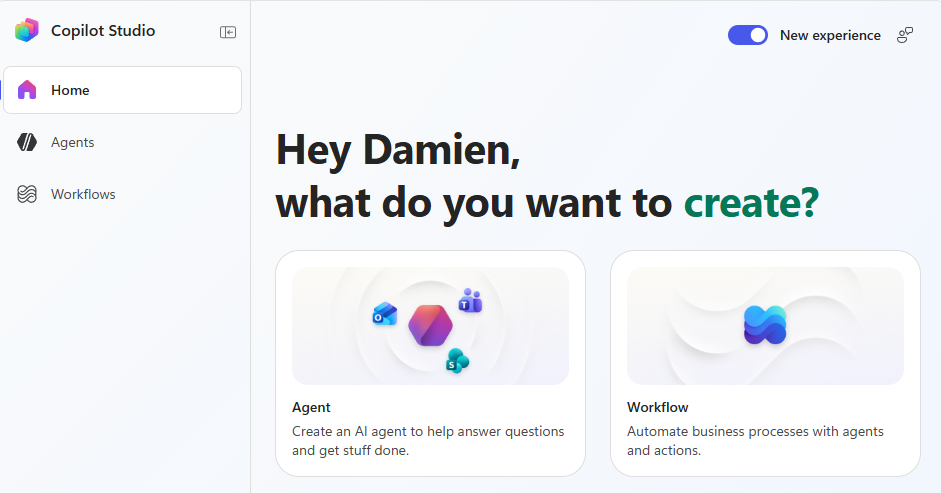
What’s Changed?
The most notable change: topics are gone from the new experience. The previous topic-based authoring is now referred to as “classic” and is still available, but the new UI is built around instructions and skills. The idea is that instead of cramming everything into an 8,000-character instruction box, you define skills for specific procedures — just like in Cowork — and the agent looks over those skills when it needs to perform a task.
What’s New in the UI?
- Skills tab — front and centre, replacing the topics-based approach.
- Connected agents — child agents are gone, replaced by a connected agents model (agent-to-agent).
- Memory — agents can now remember context from conversations, allowing for personalised experiences.
- Dedicated preview pane — a cleaner way to test your agent without leaving the builder.
- Evaluation and monitoring — accessible directly from the publish flow.
- Five-level moderation — up from the previous three levels, though custom guardrails are still not available (unlike Microsoft Foundry).
It’s worth noting this is still preview — it was pushed out around Microsoft Build and is clearly not finished. But it signals the direction Copilot Studio is heading.
Scout — The Autopilot for Your Desktop
And then there’s Scout. If Cowork is the end-user tool and GitHub Copilot is the pro-code tool, Scout sits somewhere in the middle — and it’s quite something.
What Makes Scout Different from Cowork?
The key difference is that Scout can interact with your local machine. It’s a separate desktop app (not part of Copilot) that can:
- Run PowerShell — not scripts you’ve written, but PowerShell it generates on the fly
- Browse the web using Playwright for browser automation
- Inspect and manipulate local files
- Access Microsoft 365 for email, documents, etc.
- Interact with applications like Copilot Studio, LinkedIn, and more
This is fundamentally different from Cowork, which operates within the safe boundaries of Microsoft 365. Scout operates on your actual machine, which makes it incredibly powerful but also comes with real responsibility.
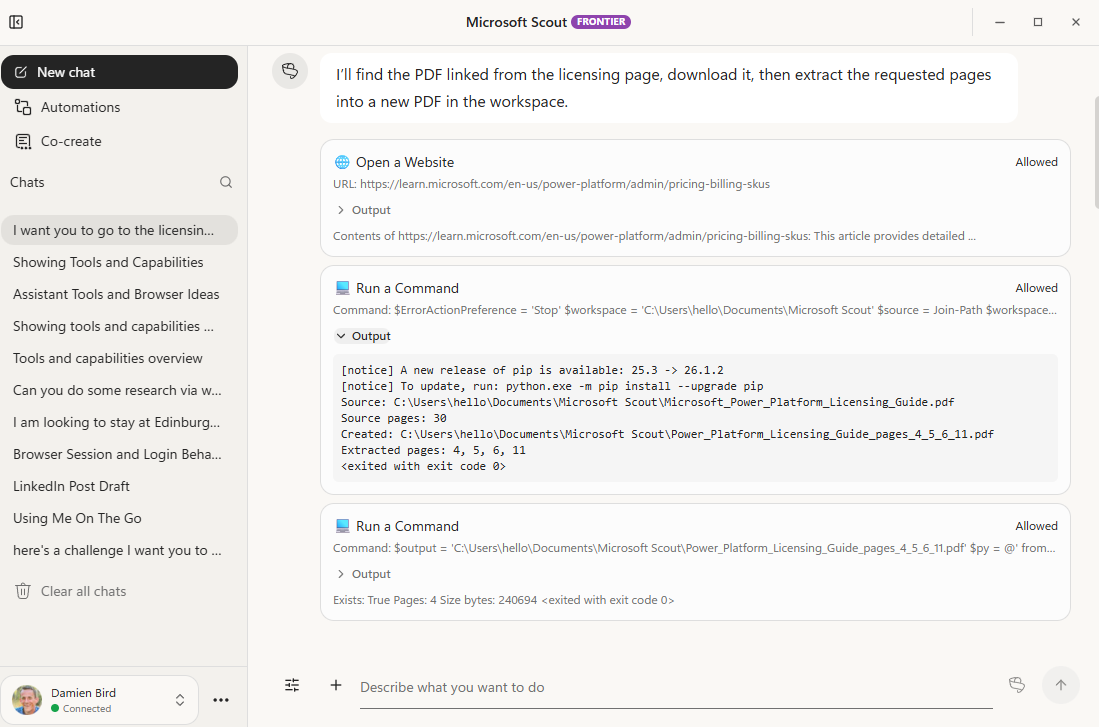
Scout in Action — PDF Extraction
To demonstrate the power, I gave Scout a single prompt: “Go to the Power Platform licensing guide page, download the PDF, extract pages 4, 5, 6, and 11, and compile those pages into a new PDF.” Scout navigated to the website, downloaded the PDF, wrote PowerShell to extract the specific pages, and produced a new compiled PDF — all without me writing a single line of code.
For anyone who’s ever wrestled with RPA tools to automate something like this, the contrast is striking. No flow designer, no button clicks to configure — just a natural language prompt and the result appears.
Scout in Action — Social Media Automation
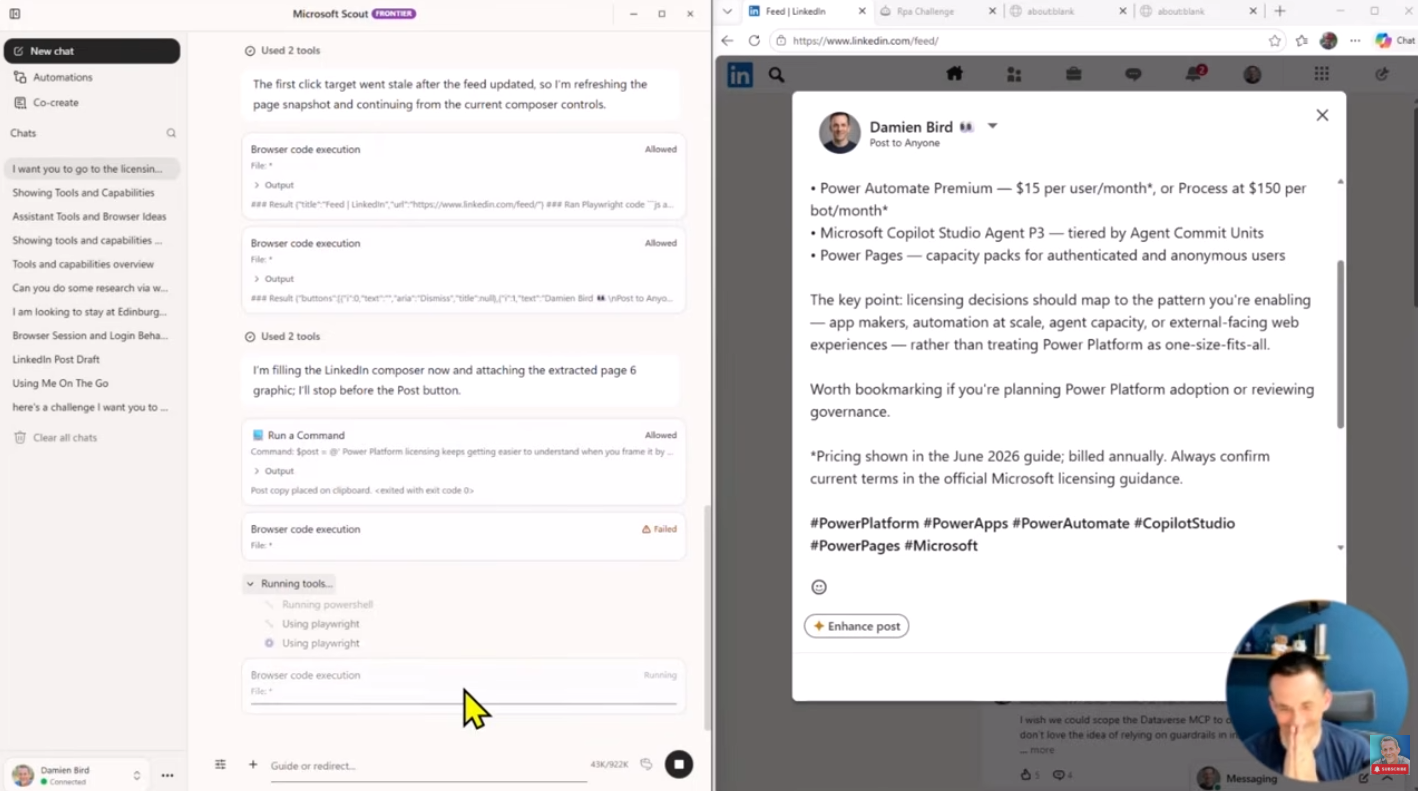
Taking it further, I then asked Scout to extract a graphic from page six of that PDF, create a LinkedIn post around it, and open LinkedIn with a draft ready to post. Scout extracted the image using PowerShell, generated a PNG, drafted the post text, launched a browser via Playwright, navigated to LinkedIn, opened the post composer, pasted in the text and image — all autonomously. All I had to do was review and hit post.
The Permission Model
Because Scout operates on your local machine, it has a permission-based model. Every action it wants to take — visiting a website, running PowerShell, accessing files — it asks for your approval first. Over time, you can approve categories of actions so it stops asking, but in early preview, it tends to ask repeatedly. The idea is to build trust gradually.
Where Is Scout Heading?
There’s a broader conversation happening about containment. At Microsoft Build, there was discussion about running agents like Scout in containers or VMs (think Windows 365) so that even if something goes wrong, the blast radius is contained. The concept of MXC (a container-like environment for agents) was mentioned — essentially giving the agent a sandbox to operate in rather than free reign on your actual machine.
Scout is only about two months old at the time of recording, so it’s very early days. But the trajectory is clear: autonomous agents that can operate across your entire digital workspace — not just Microsoft 365, but your local files, your browser, your command line, and beyond.
Practical Takeaways
Here’s what I’d suggest you do with all of this:
- Try Cowork first — it’s the safest entry point. Get your admin to enable Frontier capabilities and start with simple tasks like document creation or research.
- Start building skills — don’t try to write them from scratch. Have a conversation, refine the output, then ask Cowork to create the skill for you.
- Think about your repeatable processes — what do you do every week that follows the same pattern? That’s a skill waiting to happen.
- Check out the new Copilot Studio UI — even if you’re not building agents today, understanding the shift from topics to skills will prepare you for where the platform is going.
- Keep an eye on Scout — it’s not widely available yet, but it represents the future of desktop automation. When it lands, the combination of natural language prompting and local machine access will change how we think about automation entirely.
Final Thoughts
What strikes me most about all of this is the convergence. Skills as a concept are appearing in Cowork, Copilot Studio, and GitHub Copilot simultaneously. The idea of describing a process in a Markdown file and having an agent follow it is becoming the universal pattern for 2026. Last year it was MCP and A2A — this year it’s skills.
The gap between end-user automation (Cowork), enterprise agent building (Copilot Studio), and pro-code development (GitHub Copilot, Scout) is narrowing fast. And for those of us in the Power Platform community, understanding where each tool fits — and where they overlap — is going to be essential.
If you found this useful, make sure to subscribe to the DamoBird365 YouTube channel for more deep dives into Copilot Studio, Power Platform, and the evolving world of AI agents.