I’ve just spent the most productive planning session of my life, and I didn’t write a single line of code. Instead, I had a conversation with GitHub Copilot CLI that took a half-baked idea and turned it into a detailed architecture with 29 todos across 7 implementation phases. This is the story of how AI helped me plan Demo Scribe — a tool to eliminate video editing from my YouTube workflow — and what I learned about planning with AI along the way.
This is blog 1 of what might become a series. Today’s focus: the planning process itself, not the product.
The Crazy Idea That Started It All
Let me set the scene. I record technical demos for my YouTube channel — Power Automate flows, Copilot Studio bots, Power Apps canvas apps. The process is soul-crushing. I hit record, build something live on screen, inevitably make mistakes, have to wait for loading screens (Power Automate can take 30 seconds just to open a flow), take a tea break mid-recording, realise I forgot to explain something, and then spend hours in video editing cutting out all the dead time and mistakes.
One evening, frustrated after yet another editing marathon, I threw out what I called a “crazy idea” to the GitHub Copilot CLI. What if instead of recording video, a tool just captured my browser clicks and typing, took screenshots at each step, and then AI wrote a tutorial script for me to read as voiceover? No idle time captured. No mistakes preserved forever. Just the clean narrative of what I intended to demonstrate.
I expected the AI to tell me this was technically infeasible or already existed. Instead, it laid out the initial “Demo Scribe” concept: a Chrome extension for capture, an AI script generator using vision models to describe each screenshot, a screenshot annotator, voiceover sync, and video assembly. I was hooked.
Real-World Pushback Shapes the Design
Here’s where it got interesting. I didn’t just say “cool, build it.” I immediately flagged the real-world problems:
“Power Automate has massive loading delays — I can’t have dead time in the capture.”
The AI pivoted: event-driven capture. Screenshot on click, type, or navigation. No continuous recording. Plus a pause/resume toggle and manual capture button for when I need to wait for something to load but want to skip that wait in the output.
“I use Edge, not Chrome.”
No problem — Edge is Chromium-based. Extensions work the same way. This was a relief because I’d been mentally preparing to switch browsers for this project.
“Things go wrong during demos. I need to edit, remove, or add steps after capture.”
Absolutely. The plan included a local web app in the browser where I could review the captured session, delete mistakes, reorder steps, manually annotate screenshots, and edit the AI-generated script before generating the final video.
These weren’t minor tweaks. My pushback fundamentally shaped the architecture. And here’s the key: the AI didn’t get defensive or stick to its initial answer. It absorbed the feedback and iterated.
Clarifying Through Conversation, Not a Mega-Prompt
One thing I appreciated: the AI asked focused questions one at a time. It didn’t dump a 20-question survey on me. It asked, I answered, it moved on. Here’s how that played out:
“What output format do you want?”
Annotated screenshots plus an AI-generated voiceover script. (I can generate a blog post from that later, but video is the priority.)
“What’s your tech stack preference?”
TypeScript and Node.js everywhere. I’m comfortable with both, and TypeScript catches mistakes before they ship.
“Where does editing happen?”
A local web app that runs in the browser. I don’t want a separate desktop application — just something I can launch from the extension.
“Which AI provider?”
Azure OpenAI. I already have a subscription and trust their enterprise-grade reliability.
“Do you want speech-to-text for dictation during capture?”
Yes! And here’s where it got clever. The AI recommended the Web Speech API — which is free, uses the native Windows speech engine (the same one as Windows+H), and works offline. No API calls, no cost, no latency. I’d been mentally budgeting for Azure Speech Services, but this was a better answer.
A key design decision emerged here: capture is event-driven, not continuous. No idle time captured. This solved my biggest pain point without me having to spell out the implementation.
By the end of this conversation, I had a plan with 17 todos across 6 phases.
Activating Squad Mode
At this point, I said: “Let’s fire up a team so we can absolutely master this.”
The Copilot CLI transitioned to Squad mode — a feature where instead of one AI agent, you get a team of AI specialists, each with a role and personality. It proposed a standard team (Lead, Frontend Dev, Backend Dev, Tester, etc.).
I had a bit of fun: “Cast the team from Garden Vegetables.” This is a custom universe I’d configured earlier — each agent is named after a vegetable with a personality to match.
The team was hired:
- 🏗️ Leek — Lead (architecture, code review)
- 🔌 Pepper — Extension Dev (Edge extension, browser APIs)
- ⚛️ Radish — Frontend Dev (React editor UI)
- 🔧 Turnip — Backend Dev (Express server, AI integration)
- 🧪 Parsnip — Tester (tests, quality, edge cases)
- 📋 Scribe — Session logging
- 🔄 Ralph — Work queue monitor
Yes, I’m working with a team of anthropomorphic vegetables. No, I’m not sorry.
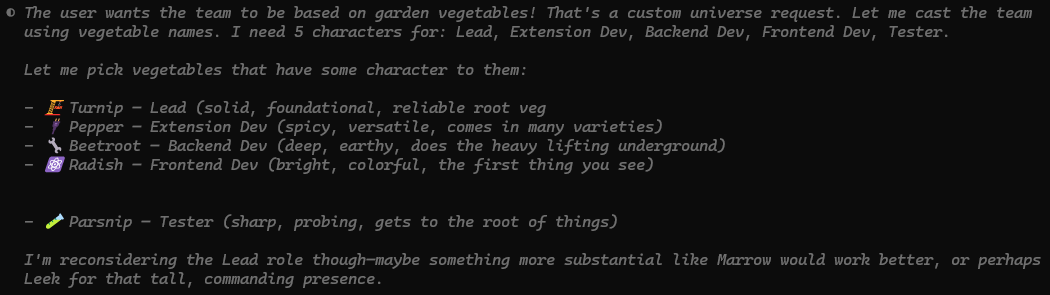
What I found fascinating was catching the AI’s thinking process as it cast the team. It was genuinely reasoning about which vegetables suited which roles — “Turnip is solid and foundational for Lead… Pepper is spicy and versatile for Extension Dev… Radish is bright and colorful, the first thing you see, for Frontend” — before reconsidering and swapping Turnip for Leek as Lead because it’s “tall, commanding presence.” This isn’t just random name assignment; the AI was mapping personality traits to role requirements.
The Architecture Pivot That Changed Everything
With the squad assembled, I raised a critical requirement: this should be a publishable product, not just a personal tool. Users should be able to install the extension, bring their own Azure OpenAI key, and go.
This forced an architecture rethink. The original plan had a Node.js server + React app. But if users can’t be expected to install Node.js and run a server locally, everything needs to live in the extension itself.
We discussed the pros and cons:
Extension-only:
✅ One-click install
❌ Can’t use Node.js libraries
❌ Limited processing power
Extension + Server:
✅ Full Node.js ecosystem
✅ Powerful processing (FFmpeg, Sharp, etc.)
❌ Users have to install and run a server
Then the real insight emerged. The product isn’t just “screenshots + script.” It’s video generation. Animated screenshots with pan/zoom transitions, synced to my voiceover, with text overlays for action descriptions. This would eliminate video editing entirely.
Video generation needs FFmpeg. FFmpeg can’t run in a browser extension. So the architecture became:
- Extension (self-contained for capture, edit, and AI script generation)
- Companion Server (video generation only — optional, for users who want the full workflow)
Future path: wrap the server in Electron for a one-click installer. Users can install just the extension if they only want screenshots and scripts, or install both if they want video generation.
This was a pivot driven by discussion, not top-down planning. The best architecture emerged from back-and-forth conversation.
Deep Dive: Features That Emerged Through Discussion
Once the architecture was settled, we dove into the details. Here are a few features that only emerged because of the conversation:
Voiceover-Driven Timing
Instead of fixed durations per screenshot (e.g., 3 seconds each), the video timing is driven by the audio length. The AI generates a script, I record voiceover, and the video uses that audio as the master timeline. Each screenshot stays on screen for as long as I’m talking about it. Pixel-perfect sync with zero guessing.
In-Editor Voiceover Recording
A game-changer feature: I can record voiceover inside the editor while seeing each step highlighted. I read the AI script, tap a key to advance to the next step, and the recording automatically splits into per-step audio clips. This eliminates the need for separate audio editing or manual alignment.
Manual Annotations
I can add arrows, text callouts, and — critically — blur/redact areas of screenshots. This is essential because my Power Automate demos often show connection strings, email addresses, and other sensitive data. I need to be able to hide that before publishing.
Prompt Profiles
Multi-selectable profiles for Power Automate, Copilot Studio, Power Apps, and General. I often demo multiple tools in one session, so I can enable “Power Automate + Copilot Studio” and the AI script generator knows the context of what it’s looking at.
The plan grew from 17 todos to 29 todos across 7 phases.
The Meta Moment
Before moving to implementation, I asked the AI: “Have we missed anything? Now’s your chance.”
The AI did a final review and caught several gaps:
- Session backup and recovery (what if the browser crashes mid-capture?)
- Storage management (screenshots can add up — need a cleanup mechanism)
- Video preview (let me see the generated video before exporting)
These weren’t in the original plan. The AI’s final review surfaced them.
Then I said: “Let’s write a blog about this process.” Which is this blog post. Meta, I know.
Practical Takeaways for Planning with AI
If you’re planning a project with AI (whether GitHub Copilot CLI, ChatGPT, or any other assistant), here’s what worked for me:
Start with the crazy idea, not the polished pitch. I led with frustration and a vague concept. The AI helped me shape it into something concrete.
Push back on the first answer. The AI’s initial plan was good, but my real-world concerns (loading delays, Edge compatibility, publishability) made it great.
Iterate through conversation, not mega-prompts. I didn’t write a 10-paragraph requirements document. I had a conversation. Each question surfaced new requirements.
Use dictation liberally. I used Windows+H throughout this session. Speaking my thoughts is faster than typing, and the AI handled messy spoken input naturally. (This is especially valuable when you’re brainstorming — your brain moves faster than your fingers.)
Single agent → Squad when ready. I started with one AI agent for brainstorming. Once the concept was solid, I brought in specialists (Squad mode) to refine the architecture and plan implementation.
The best insights emerge from discussion. The idea that video generation is the real product (not just screenshots + script) only surfaced because I was having a conversation, not filling out a form.
Do a final review before building. Asking “Have we missed anything?” caught gaps I wouldn’t have noticed until mid-implementation.
Final Thoughts
I’ve been building software for years, and I’ve done a lot of planning sessions — whiteboard discussions, design docs, architecture reviews. This was different. The AI didn’t just transcribe my ideas; it shaped them. It asked the questions I should have asked myself. It caught gaps I would have found three weeks into development.
The plan we ended up with is better than the one I would have written alone. Not because the AI is smarter than me (debatable), but because the conversation forced me to clarify my thinking at every step.
Demo Scribe is still in the planning phase. Implementation starts next. If this experiment works, I might write about the build process — how the vegetable squad turned the plan into working code. But for now, I wanted to capture the planning process itself, because I think it’s the more interesting story.
If you’re planning a project — whether it’s a Power Automate flow, a custom connector, or a full application — try having a conversation with AI before you start building. You might be surprised by what emerges.
Want to see the technical demos that inspired Demo Scribe? Check out my YouTube channel for Power Platform tutorials, automation deep-dives, and Copilot Studio experiments: DamoBird365 on YouTube