Ever wanted to generate a PDF from a Microsoft Forms response without paying for premium connectors? In this post, I’ll show you how to populate a Word template dynamically using data from Microsoft Forms — all without the Premium Word Template action — using a clever SharePoint document library trick in Power Automate.
The Build Demonstration
Does your line of work require you to populate the same template over and over again? Maybe it’s invoices, certificates or receipts? What if you could complete a microsoft form and receive the completed file in return in under 60 seconds? Direct to you or your customer’s email or your document library in Teams?

Live Demo via Forms
How It Works — Standard Actions Only
Whilst I have made this form public, you could use it internally to generate invoices for your customers. The creation of the pdf is done using standard PowerAutomate features, mainly get file, create file, update file properties and convert file. It uses a little known feature of file metadata and word quick parts for document properties. I have also used a Premium Connector from Encodian which will turn your favourite website into a QR and embed on your pdf file.

First I get the File Template and then Create a copy of the file
The Premium Action vs The Free Alternative
Creating a dynamic word file in Power Automate generally requires the use of the premium action however there is a free but more involved way of doing this.

Premium Action
Setting Up Document Library Metadata
If you create a file in a document library that has bespoke columns / metadata, your file will inherit these as file properties.

My Document library in SharePoint with bespoke columns / metadata
Using Word Quick Parts for Document Properties
You can then use this additional metadata to store and populate a word template using the quick parts of word, specifically the document propery parts where you will see the Award, CertificateData and PersonName metadata that I have created for my template file.

Document Property Quick Parts
Updating File Properties in Power Automate
During my flow, once I have obtained the response from a form submission, I can then update the file properties to include the metadata for the fields I am looking to populate in my Word Document Template.

Note that I have the PersonName, Award and CertificateDate Metadata Values
Converting to PDF via OneDrive
Once the file properties of the certificate Word Template have been updated, I have to move across to OneDrive. The reason being, if I want to convert a Word File to PDF in SharePoint, I need a Premium Action. In OneDrive, I can do it with the convert file action. I get a copy of the word file containing the new metadata properties, create a new file in OneDrive, Convert that file to PDF and then save the contents of that conversion into a new PDF.
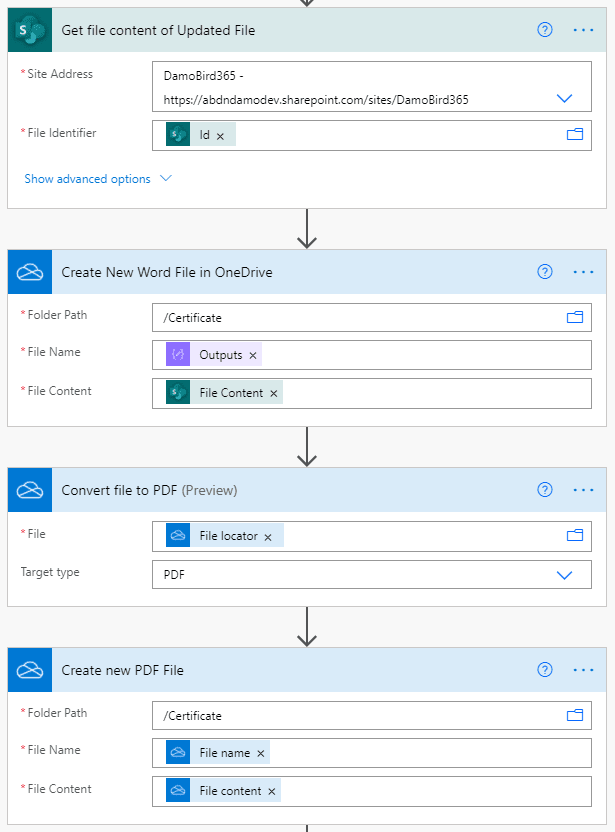
Moving the file onto OneDrive for the conversion to PDF
The Certificate Template and QR Code
Below is an example of the Word Template with Web Parts, during my form quiz, I ask the end user for their favourite website, I then use the Encodian create QR Code and add image watermark actions to add your favourite site as a QR code to the file.

The certificate template in Word
Try the Live Demo
If you would like to see this in action, you must supply a valid email for this live demo but please note I will not use it for anything beyond this purpose unless you need to contact me for further information. If you would rather use a disposable email, the routine runs in under 60 seconds so there are no problems there.

Nice and quick history of runs…..
Final Thoughts
Let me know what you think? What could you use this solution for? Is there anything you would like to see me solve?
For more Power Automate Ideas and solutions, please check here. If you are looking to do the same using Excel Templates, maybe you want to have a read of this post I have done using Office Scripts.