Using Add a row into a table is straightforward when Power Automate can see your Excel file and table at design time. Make the file path or table name dynamic, however, and those friendly column inputs disappear. You can solve that with a JSON object, but it introduces a sneaky risk: Excel can silently ignore renamed or deleted columns while the action still reports success.
In this post, I’ll show you how to compare the row object you sent with the body returned by Excel, using one simple intersection() expression. If every column is present, the flow continues. If something has changed, the flow deliberately fails and tells you why.
Why Dynamic Excel Tables Lose Their Column Inputs
When a fixed file and table are selected in Add a row into a table, the Excel Online (Business) connector reads the table schema and displays each column as a separate input.
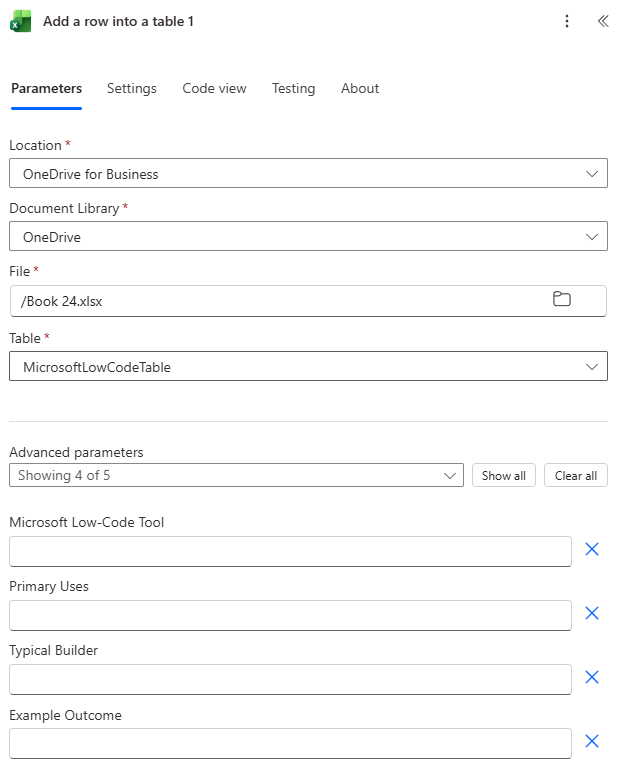
This is the experience most makers will be familiar with. Power Automate knows the workbook, knows the table and can therefore show fields such as:
- Microsoft Low-Code Tool
- Primary Use
- Typical Builders
- Example Outcome
The problem starts when the File or Table value is supplied dynamically. Perhaps the workbook has just been created, its identifier came from another action, or the same flow needs to work with different tables.
At design time, Power Automate cannot inspect a table that will only be known at run time. Without a known schema, it cannot generate the individual column inputs.
Supplying the Excel Row as an Object
The workaround is to create the row as a JSON object. Each property name must exactly match a column heading in the Excel table, while its property value contains the data to insert.
In my example, I first compose the table name:
MicrosoftLowCodeTable
I then create the row in a ComposeRowObject action:
{
  "Microsoft Low-Code Tool": "Power Pages",
  "Primary Use": "Build secure, data-driven external websites for customers, partners, and communities",
  "Typical Builders": "Business users, makers, and web developers",
  "Example Outcome": "Customer self-service portal or partner-facing website"
}
The output of ComposeTableName is used in the action’s Table field, and the output of ComposeRowObject is placed in the Row field.
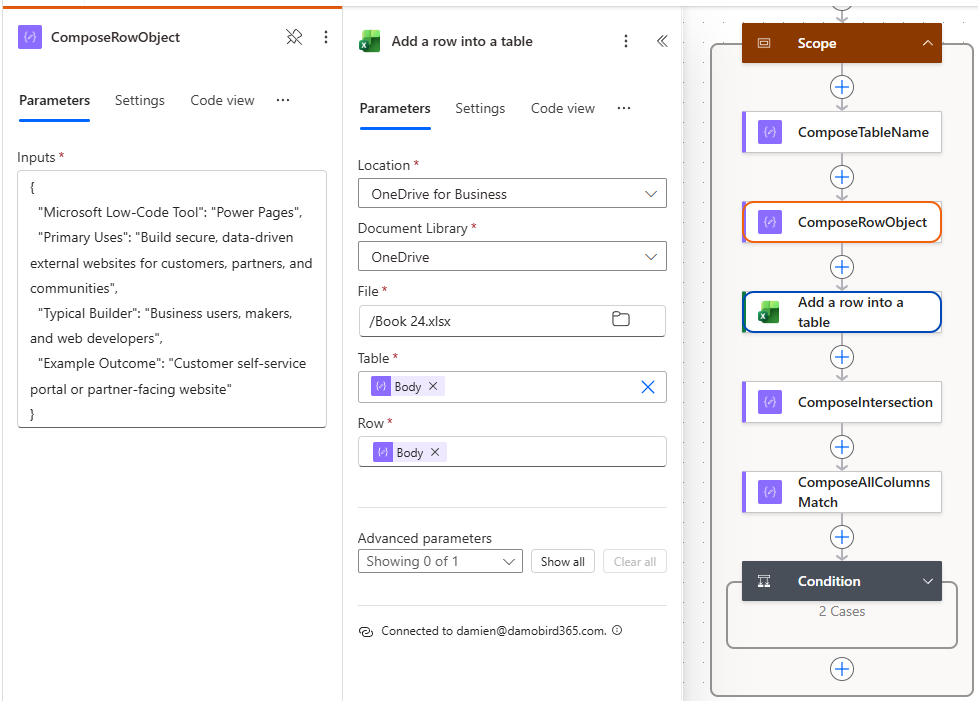
This is a useful pattern whenever the Excel schema cannot be discovered by the designer. I used the same approach in my post covering three ways to generate and populate Excel files with Power Automate.
The Silent Schema Change Problem
The object approach works well, but it shifts responsibility for the schema from the connector to us. The object keys now act as our column mapping.
Imagine the flow sends this property:
{
  "Primary Use": "Build secure, data-driven external websites"
}
Someone later changes the Excel heading from Primary Use to Primary Uses, or deletes the column completely. The names no longer match, but the Excel action might not fail. It can add the row, ignore the unknown property and return a successful action status.
That is potentially worse than an obvious connector error. The flow appears healthy, but some of the data is missing from Excel.
Fortunately, the action’s response body gives us what we need. Alongside fields such as ItemInternalId, it returns the Excel columns that were successfully matched and written:
{
  "ItemInternalId": "2bc2628b-b609-4692-84d6-dddd4c4977fd",
  "Microsoft Low-Code Tool": "Power Pages",
  "Primary Use": "Build secure, data-driven external websites for customers, partners, and communities",
  "Typical Builders": "Business users, makers, and web developers",
  "Example Outcome": "Customer self-service portal or partner-facing website"
}
If a supplied property does not match an Excel column, that property is absent from the response. We can use this behaviour to validate the row.
Comparing the Objects with Intersection
Although intersection() is often demonstrated with arrays, the expression also supports objects. With objects, it returns the properties whose names exist in both inputs.
Add a ComposeIntersection action after Add a row into a table and use:
intersection(
  body('Add_a_row_into_a_table'),
  outputs('ComposeRowObject')
)
I’ve deliberately placed the original row object second. When matching object properties have the same name, intersection() keeps the value from the last object. This means the comparison is focused on whether the keys were returned, without Excel formatting or type conversion changing the result.
The response contains additional properties such as ItemInternalId, but that does not matter. They do not exist in ComposeRowObject, so they are not included in the intersection.
You can read more about the expression in Microsoft’s intersection() documentation. I have also previously explored Union, Except and Intersect in Power Automate, although this time we are applying it to objects rather than arrays.
Checking That Every Column Matched
The intersection should be identical to the original row object when every supplied key exists in the Excel response.
Add another Compose action named ComposeAllColumnsMatch:
equals(
  outputs('ComposeIntersection'),
  outputs('ComposeRowObject')
)
The result is a simple Boolean:
truemeans every object key matched an Excel column.falsemeans at least one supplied key was missing from the response.
This is more reliable than comparing the raw property counts. The Excel response contains connector metadata, and a count alone would not prove that the correct property names matched.
Failing the Flow When the Schema Has Changed
Add a Condition after ComposeAllColumnsMatch and check whether its output is equal to true.
The True branch does not need to do anything. All the expected columns were found, so the flow can continue with its next action.
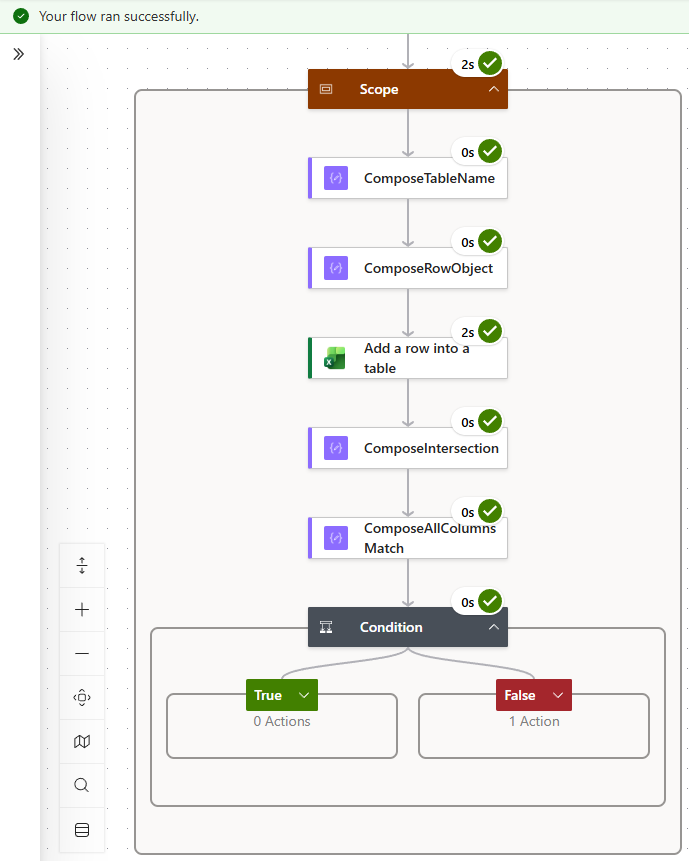
In the False branch, add a Terminate action with:
- Status: Failed
- Code:
ExcelColumnMismatch - Message:
concat(
  'Not all object keys matched Excel columns. Input: ',
  string(outputs('ComposeRowObject')),
  '. Excel response: ',
  string(body('Add_a_row_into_a_table'))
)
Now a renamed or deleted column produces a failed flow run instead of quietly losing data.
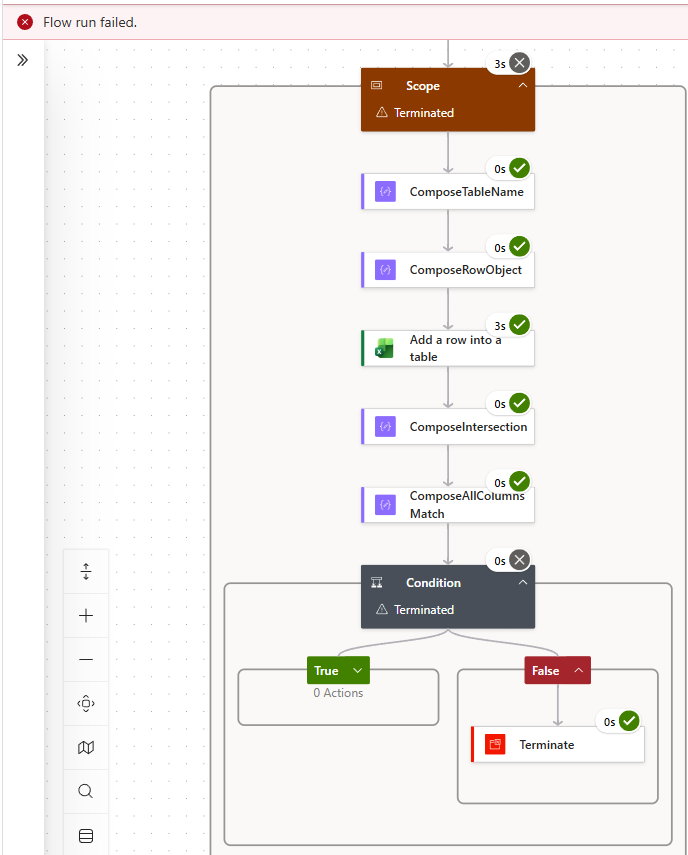
The custom message includes both the object sent to Excel and the body returned by the connector. Open the failed Terminate action and compare the two objects to identify the missing property.
The Complete Validation Pattern
The completed scope contains:
- ComposeTableName — supplies the dynamic Excel table name.
- ComposeRowObject — creates an object whose keys match the expected table headings.
- Add a row into a table — uses the composed table name and row object.
- ComposeIntersection — keeps only properties present in both the response and row object.
- ComposeAllColumnsMatch — checks whether the intersection equals the original object.
- Condition — continues when the result is true.
- Terminate — fails the flow with
ExcelColumnMismatchwhen the result is false.
The key expressions are:
intersection(
  body('Add_a_row_into_a_table'),
  outputs('ComposeRowObject')
)
equals(
  outputs('ComposeIntersection'),
  outputs('ComposeRowObject')
)
You could combine these into one expression, but I prefer the separate Compose actions while building and testing. They make the run history much easier to inspect and clearly show which properties survived the intersection.
Practical Takeaways
- Use a JSON object when a dynamic Excel file or table prevents Power Automate from displaying the column inputs.
- Make every object key match its Excel table heading exactly, including spaces and spelling.
- Do not assume a successful Excel action means every property was written.
- Compare the original object with the Excel response using
intersection(). - Put the original object last when you want to validate keys without being affected by Excel value conversion.
- Use Terminate with a failed status so schema changes become visible and can trigger your existing error-handling process.
Final Thoughts
Dynamic files and tables make Excel automations far more reusable, but they also remove some of the design-time protection we get from the connector. Once the row is supplied as an object, a changed heading can turn into silent data loss unless we validate what Excel actually accepted.
I like this pattern because it is small, quick and uses the response we already have. One intersection, one equality check and a Terminate action turn a silent problem into a clear, actionable failure.
If you found this useful, check out my YouTube channel DamoBird365 for more Power Automate expressions, Excel automation and practical Power Platform tutorials.